WebClient settings
The WebClient settings section allows administrators to configure default WebClient behavior at the domain or server level. Depending on your permissions, these settings apply to users across the organization.
Access WebClient settings
- Sign in to WebClient with an administrator account.
- Click the Settings icon.
- Select Manage WebClient from the Admin overview.
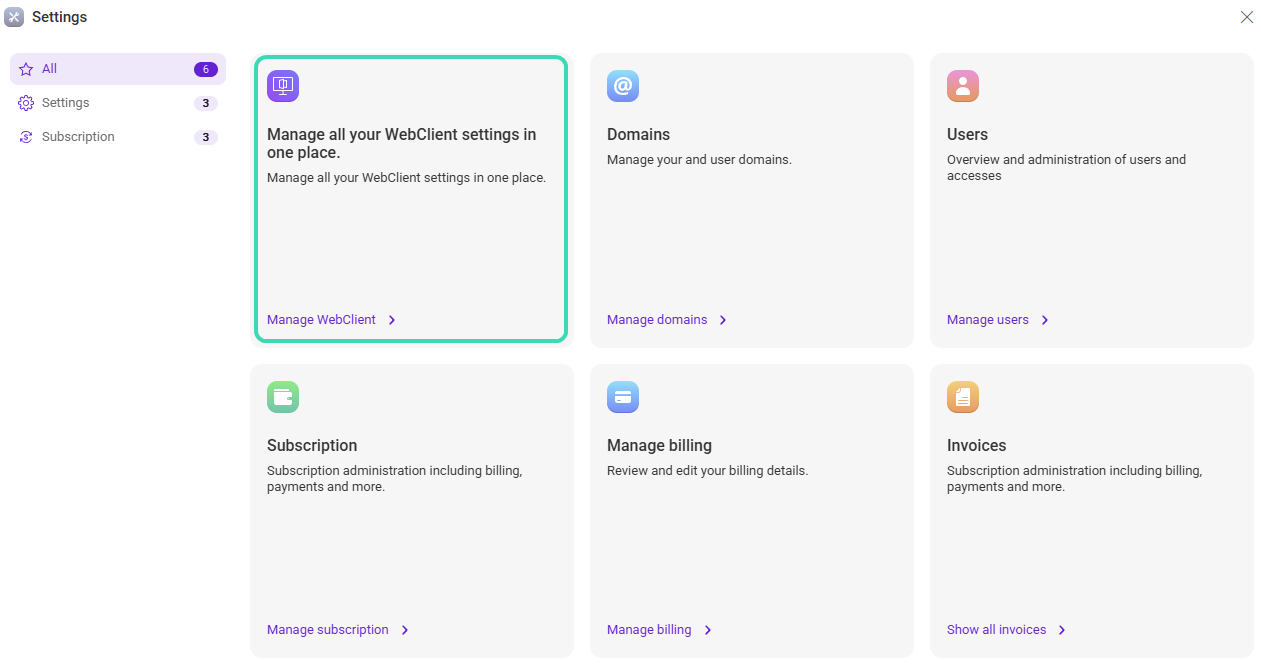
Figure 1. WebClient settings entry in the Admin overview.
Settings structure
The interface is organized into four main sections: Mail, Chat, General, and Calendar. Each section defines default behavior that applies according to your administrative scope.
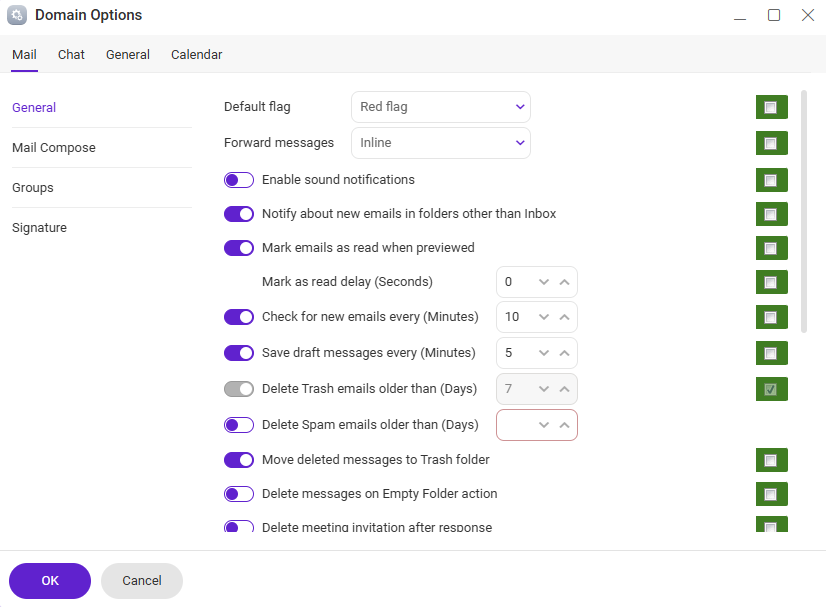
Figure 2. WebClient settings overview.
Settings overview
Use the table below to quickly find where each group of settings is configured.
| Section | Area | Description |
|---|---|---|
| Message handling | Controls reading, preview behavior, and automatic message state changes. | |
| Notifications | Defines sound and visual alerts for new messages. | |
| Automatic actions | Configures automatic deletion of spam or trash after a defined period. | |
| Chat | Chat input | Controls default chat input behavior, including emoticons and GIF availability. |
| Editor type | Specifies the default message editor used in chat conversations. | |
| General | Language and localization | Sets default interface language and locale-related preferences. |
| Theme and layout | Controls visual appearance options such as theme and general UI preferences. | |
| Notifications | Defines global notification behavior across WebClient. | |
| Session options | Controls session-related behavior such as logout and other client-wide options (depending on permissions). | |
| Calendar | Time and work hours | Defines default time zone, working hours, and work week settings. |
| Week configuration | Controls week numbering and the start day of the calendar week. | |
| Event behavior | Sets default behavior for calendar events, reminders, and conferencing options. |

