Users
The Users section provides domain-level administration of accounts and related settings. From this area, administrators can manage user accounts, configure service access and limits, and review account activity and statistics.
In short: Use Users to manage accounts inside a selected domain (accounts, permissions, limits, and services).
Access Users
In WebClient, open the Settings (admin overview) and select Users (Manage users).
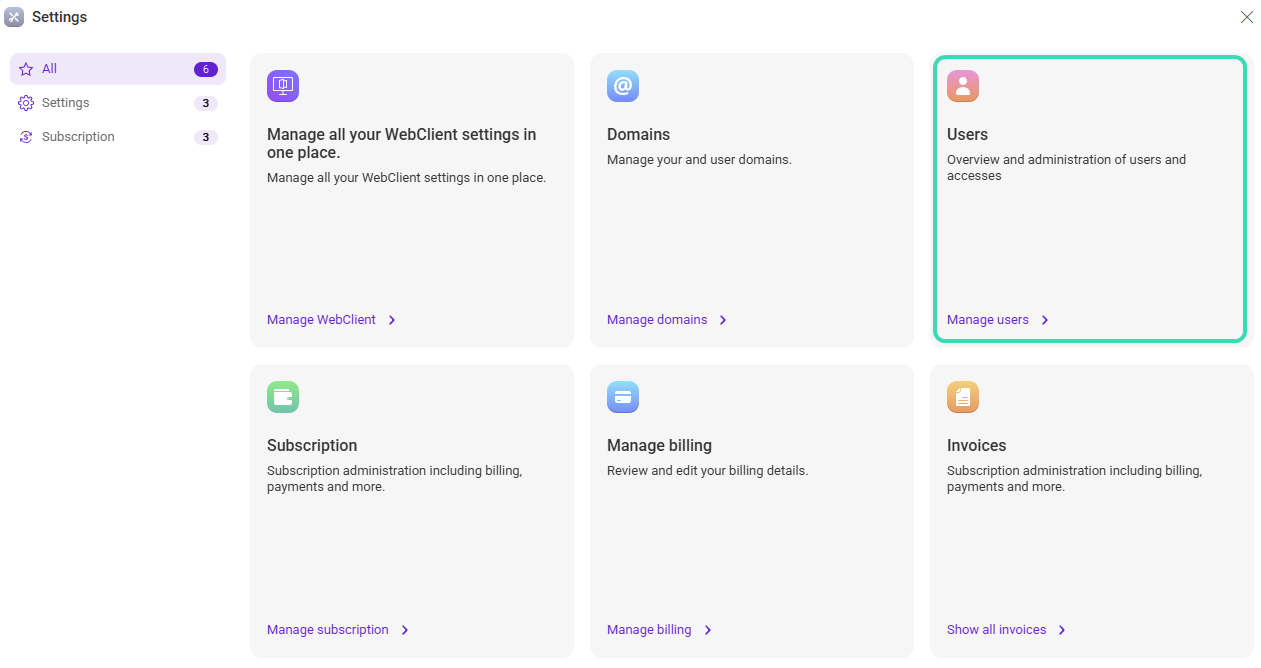
Users overview
The Users overview page lists accounts in the selected domain. You can filter accounts, review their usage and assigned plan, and open user-related configuration sections (such as Properties, Limits, or Features).
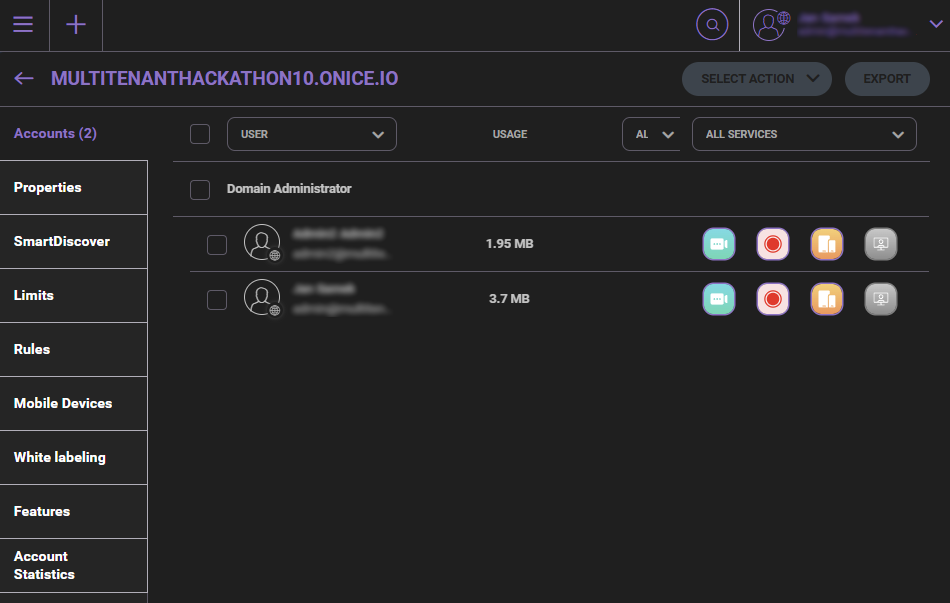
Accounts overview filters
The filter bar allows you to narrow down the list of accounts based on account type, subscription plan, and enabled services.
| Filter | Description |
|---|---|
| Type | Object type: User, Mailing list, Group, Resource, Static route. |
| Plan | Subscription plan assigned to the account. |
| Services | Enabled services (Desktop Client, ActiveSync, Conference, Recording). |
User administration sections
When you open the Users section, you can switch between multiple administration panels. The availability of individual panels and options depends on your permissions and enabled services for the domain/account.
| Section | What you can do here |
|---|---|
| Accounts | View accounts in the selected domain, filter and search users, review usage/plan assignment, and perform bulk actions. |
| Properties | Configure account properties, permissions, rights, and client access options. |
| SmartDiscover | Manage autodiscovery hostnames and service endpoints used by clients (for example IMAP/POP/SMTP and related services). |
| Limits | Configure domain and user limits such as quota restrictions, message size limits, sending limits, and expiration rules. |
| Rules | Create and manage rules used for automated processing (availability depends on configuration and services). |
| Mobile Devices | View and manage mobile devices connected to accounts and related device status (where supported). |
| White labeling | Customize branding and UI appearance (for example backgrounds, logos, and login page settings), depending on your plan. |
| Features | Enable or disable available WebClient features and select modern vs. legacy interface variants for supported modules. |
| Account Statistics | Download account statistics for a selected time range (for reporting or troubleshooting). |
Properties
The Properties page provides access to domain/account configuration, including permissions, service access, and client application options. It also provides a summary view of quota-related information.
| Area | Description |
|---|---|
| General | Domain/account identification and basic settings (for example name and aliases where applicable). |
| Permissions & Rights | Controls message handling permissions and access rights. Service-level permissions configured at user level can override domain settings depending on configuration. |
| Client Applications | Provides quick access to client-related management areas (for example Mobile Devices, Outlook Sync, or Desktop Client), depending on enabled modules. |
| Quotas | Displays quota-related summary information and provides access to domain/user limit configuration. |
Features
The Features page lets you enable or disable WebClient modules for users and select modern or legacy variants for supported modules. Changes take effect after saving.
White labeling
The White labeling page provides branding configuration for WebClient and related interfaces. Depending on your plan, you can configure background, logos, login screen options, and UI appearance settings.
Limits
The Limits page defines restrictions for the domain and users. Domain limits can take precedence over user-level limits. You can also configure domain expiration settings where applicable.
SmartDiscover
The SmartDiscover page configures hostnames and service endpoints used for client connectivity. It can be used to quickly apply hostnames across multiple services or restore defaults.
Account Statistics
The Account Statistics page allows you to select a time range and download usage data. This can be used for reporting and troubleshooting account activity.
Related sections
- Manage domains in Domains.
- Configure WebClient defaults in WebClient settings.
- Review subscription plans in Subscription.

