Domains
The Domains section lets administrators manage domains and the users assigned to them. Use it to add domains, review their status, and open domain-specific settings.
Access Domains
- In WebClient, click the Settings icon to open the Admin overview.
- Select Domains (Manage domains).
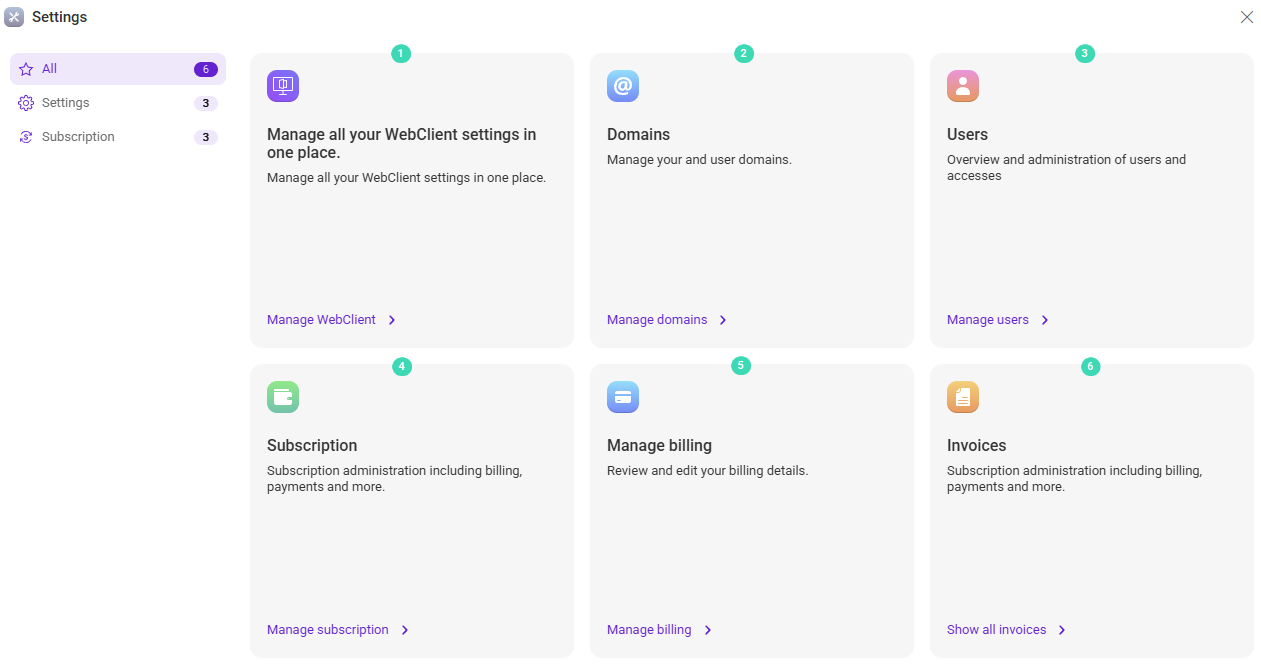
Figure 1. Domains entry in the admin overview.
Domains overview
The Domains overview shows all configured domains and their current status at a glance. It helps you quickly verify configuration health and identify domains that need attention.

Figure 2. Domains overview page.
What you can do here
- Add new domain to register a new domain in IceWarp.
- Open a domain to manage domain-specific settings and users.
- Review status to identify domains that are not fully configured.
Domain list columns
The domain list displays key information for each domain:
| Column | Description |
|---|---|
| Domain name | Displays the domain name and indicates the default domain. |
| Status | Shows the domain state (for example, OK, Validated, or Changes pending). |
| Active users | Displays the number of active users assigned to the domain. |
| Storage | Shows current storage usage for the domain. |
| Actions | Provides access to domain-specific actions and settings. |
Domain setup status
If a domain shows unfinished setup or pending changes, open the domain and complete the missing configuration. Use the status indicators to prioritize domains that affect user access.
Related sections
- Manage user accounts in Users.
- Configure WebClient defaults in WebClient settings.

