Webinar Mode
Webinar mode is a presentation-focused meeting setup where moderators share content and speak, while attendees mainly watch and listen. It is designed for presentations, lectures, and large-audience events, with controlled interaction, dedicated Q&A tools, and enhanced moderator controls.
| Role | What it can do |
|---|---|
| Moderator | Starts the webinar, manages participants, assigns presenters, and controls key settings. Can share screen or content and speak during the webinar (based on permissions). |
| Attendee | Joins the webinar to watch and listen. Interaction options (chat or Q&A) depend on the host settings. |
Starting a Webinar
- Schedule or start a new Conference as usual.
- Configure all required conference settings as you would for a standard meeting. Detailed information is available in the Conference section.
-
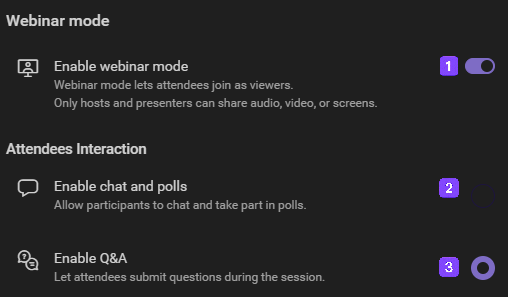
Enable Webinar mode
 in the meeting settings.
-
After enabling Webinar mode, choose how attendees can interact:
-
Enable Chat and Polls

-
Enable Q&A

-
Enable Chat and Polls
Enable Chat and Polls
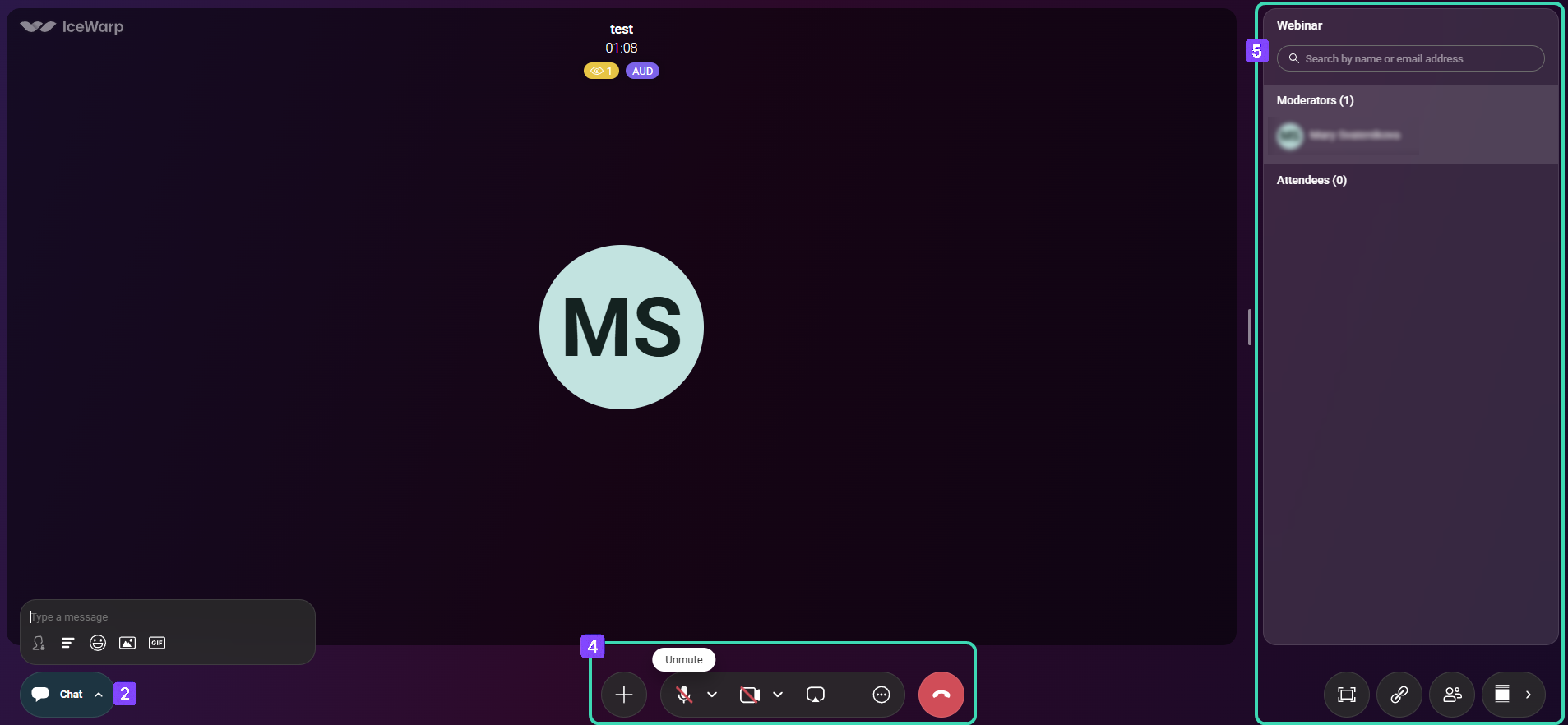
Attendees can use the Chat panel located in the bottom-left corner of the window.
The chat toolbar includes the following options:
| Option | Description |
|---|---|
| Chat | Sends messages to the webinar chat. Messages are sent to all participants by default when you start typing. |
| Private Message | Allows you to select a specific attendee or moderator using the person icon and send a private message. |
| Poll | Creates a poll that attendees can vote on. |
| Other chat controls | Provides additional tools available in standard meetings, such as emojis, GIFs, and image sharing. |
Enable Q&A
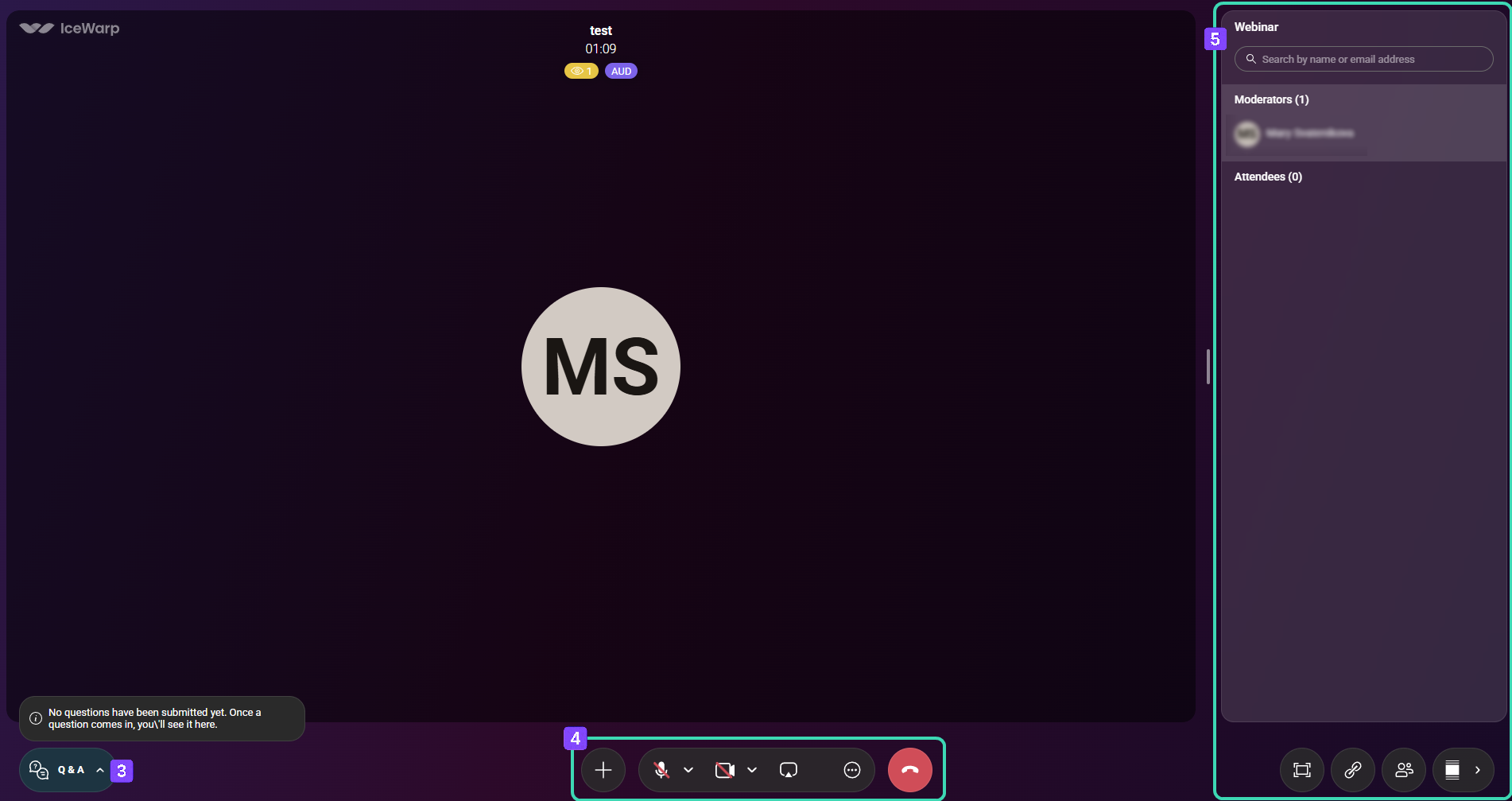
The Q&A section is available in the bottom-left corner of the window and allows attendees to submit questions during the webinar.
As a moderator, you can manage questions using the following actions:
| Action | Description |
|---|---|
| Reply | Responds to the question directly in the Q&A interface. |
| Live Answer | Starts answering the question live during the webinar. Once completed, the question is marked as answered live. |
| Won’t Answer | Marks the question as not answered, indicating that it will not be addressed. |
Bottom control bar
The control bar at the bottom of the window  lets you manage the main meeting controls used during a conference or webinar.
| Control | Description |
|---|---|
| Add (+) | Opens a menu with additional actions, such as inviting participants, sharing documents, raising your hand, or sending reactions. |
| Microphone | Mutes or unmutes your microphone. The arrow next to the icon opens audio device settings for selecting input and output devices. |
| Camera | Turns your camera on or off. The arrow opens video device settings, where you can choose a camera and preview the video feed. |
| Screen Sharing | Shares your screen or a selected window with other participants. |
| More options (⋯) | Opens additional meeting options, such as recording, virtual backgrounds, keyboard shortcuts, or settings. |
| End Call | Leaves or ends the meeting or webinar. |
Participants sidebar
The participants sidebar  on the right side displays a searchable list of moderators and attendees.
Participants are grouped by role, with the current count shown for each group.
on the right side displays a searchable list of moderators and attendees.
Participants are grouped by role, with the current count shown for each group.
Use the More options (⋮) icon next to a participant to manage them individually (for example, mute/unmute, turn video on/off, allow screen sharing, remove them, or promote them to moderator).
Bottom-right shortcuts
| Shortcut | Description |
|---|---|
| Fullscreen | Switches the meeting or webinar to fullscreen mode. |
| Copy link | Copies the meeting link to your clipboard for easy sharing. |
| Manage attendees | Opens the participant management panel, where you can manage attendees and moderators and view invited users who have not joined. |
| Hide thumbnails | Collapses or expands the right-side Participants sidebar. |

