Services
General
Selecting the System >Services node opens the General tab. This tab shows a complete list of available services on your server and some information about their status.
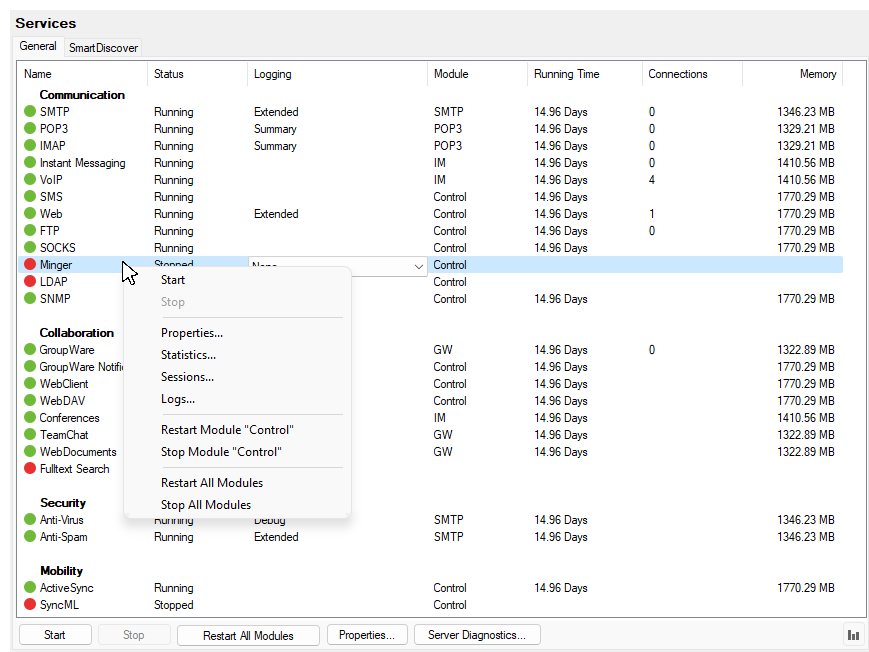
Figure. Services management: General tab.
|
Field |
Description |
||||||||||||||||||||
|---|---|---|---|---|---|---|---|---|---|---|---|---|---|---|---|---|---|---|---|---|---|
|
Name |
This column shows the name of the available service. To the left of the name is either a red or green box which gives you a visual indication of whether the service is running a green box if the service is running or a red box if the service is stopped. Right-click the appropriate service name to reveal the pop up menu with options below.
|
||||||||||||||||||||
|
Status |
This column shows whether the service is running or stopped. |
||||||||||||||||||||
|
Logging |
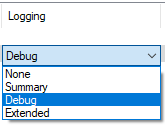
This column shows the logging state of each service (starting from the logs with brief information - Summary, to the most complete - Extended). Click the logging state to change it from the drop-down menu.
You can use multiselect (CTRL+click,SHIFT+click), when performing the same change for more services. Logging state of all selected services can be changed en bloc. For more information about logging, refer toService - Logging. |
||||||||||||||||||||
|
Module |
This column shows what module serves the appropriate service. |
||||||||||||||||||||
|
Running time |
This column shows how long the service has been running. |
||||||||||||||||||||
|
Connections |
This column shows how many current connections to the service. |
||||||||||||||||||||
|
Memory |
Amount of virtual memory reserved for a use by the service. |
||||||||||||||||||||
|
Start button |
Makes the selected service(s) active, i.e.: available for users. You can select a service group by clicking its name. |
||||||||||||||||||||
|
Stop button |
Makes the selected service(s) inactive, i.e.: not available for users but still running. You can select a service group by clicking its name. Note: The Control service cannot be stopped in the remote console mode, it would disconnect the console. |
||||||||||||||||||||
|
Restart All Modules button |
Restarts all running modules. Note: The Control service is not restarted in the remote console mode. |
||||||||||||||||||||
|
Properties button |
Opens the service properties dialog for the selected service (you can also double-click the service to open properties). Discussed in detail in Service - Properties. |
||||||||||||||||||||
|
Server Diagnostics button |
Performs basic diagnostics on your services. Discussed further in Server Diagnostics. |
||||||||||||||||||||
|
Show/Hide statistics button |
Select a service and click the button (in the right-hand lower corner) to reveal / hide statistics for this service.
Statistics are not shown when any service is not selected. Furthermore, statistics are available only for services listed the Statistics service list . |