Members
This tab displays a sortable list of members of the selected mailing list. By default, members are listed in alphabetical order.
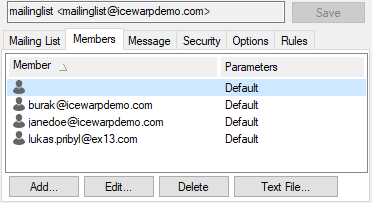
Figure. Mailing list level management: Members tab.
|
Add
|
Click the button to add a new mailing list member. The Member dialog opens.
|
|
Edit
|
Select a member and click the button to edit the user settings. The Member dialog opens.
|
|
Delete
|
Select a member and click the button to delete this mailing list member.
|
|
Text file
|
Click the button to open and edit a plain text file listing the mailing list members. To reveal the syntax rules, click the Comment button there.
Note: You have to use UTF-8 format for this file if you want to import it.
|
Member Dialog
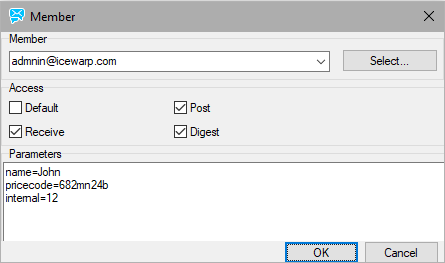
Figure. Members tab: Member dialog
|
Member
|
The email address of the member.
It can contain the user's full name, in the following format:
"John Doe"<john@icewarpdemo.com>
You can use the Select button to open Select Accounts.
Note: You also can send SMS to mailing list members.
|
|
Access
|
Determines what the member can do.
-
Default: Member will have default rights as defined within the Security of mailing list settings.
Or various combinations of the following can be chosen from:
-
Receive: Member will receive all messages sent to the list and cannot post messages to the list.
-
Post: Member can post a message to the mailing list.
-
Digest: Member will receive all messages sent to the list, in a single "digest" message, and cannot post messages to the list.
Note: If a mailing list has a group entered as a member, then any rights defined in the mailing list for that group will override any rights defined in the group definition.
|
|
Parameters
|
Defines variables that can be used within a message to create personalized messages.
Variables can be included within a message by including the variable name enclosed within double braces.
For example: in the above screenshot, any occurrence of {{name}} within the message is replaced with John.
|
Sending SMS to Mailing List Members
Besides email messages, you can set sending SMS to mailing list members. In this case, use the following syntax:
<sms:<number>?user=<username>&pass=<password>>
Where:
<number> - user's phone number
<username> - is a valid username for authentication (can be an account created for this purpose) - only required if SMS server authentication is active
<password> is the valid password associated with the username - only required if SMS server authentication is active
Example:
<sms:+15551234567?user=john&pass=johnspwd>
External Delivery
You may want to send messages to mailing list members as they were sent externally. Mailing list members can have whitelisted some other members or set rules for them. In the case such a member sends a message via a mailing list account, these whitelisting/rules will not work. Use the m_deliverexternally API variable to workaround. (Right-click the mailing list name, select the API console item and search for externally.) Set the value to true.

