Catalog
The Catalog tab lets you make settings of the catalog.
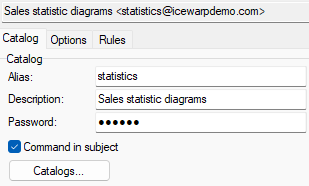
Figure. Catalogs level management: Catalog tab.
| Field |
Description |
|---|---|
|
Alias |
A unique identifier for the account within the domain. |
|
Description |
A short description of the account. |
|
Password |
You can specify a global password which must be used for all commands sent to this catalog account. We recommend to protect all your catalogs with passwords. You should also take care to protect the passwords themselves. |
|
Command in Subject |
By default, all commands are read from the Subject header. If you uncheck this option, the message body will be checked for commands. Possible command within the Subject header is ignored, in this case. This allows multiple commands to be issued within the body text. |
|
Catalogs |
This button brings up the catalog configuration dialog where you can define all the catalog stores and items. See Catalog > Maintenance. |
Maintenance
To define/modify files and directories within the catalog account, click the Catalogs... button.
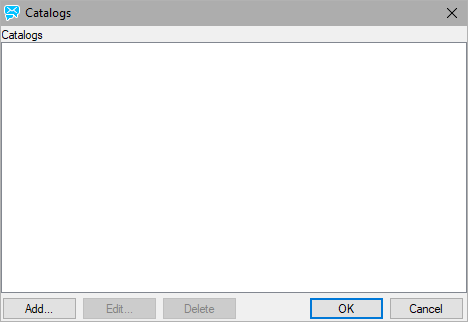
Figure. Catalog tab: Catalogs dialog.
In the Catalogs dialog you can add, edit and delete particular catalogs.

Figure. Catalog tab: Catalog item dialog.
In this dialog you can configure the whole catalog.
|
Field |
Description |
|---|---|
|
Name |
Specifies the catalog name or ID which will be used in the commands. This should be unique within the catalog accounts. |
|
Password |
Specifies the password required to GET this item (the DIR command does not require a password). |
|
Folder |
Specifies that this item is a folder. All files within the folder will be available individually within the catalog. You have to enter a fully qualified path in the text box. |
|
Allow subdirectories |
Only available if the item is a folder, checking this will include files within subfolders of the specified folder. |
|
Folder ZIP file |
If checked, all files in this item will be compressed using ZIP compression. You have to fill in the ZIP file name field for the file. This option is useful when you have a large amount of data within a catalog. The ZIP file, if sent as an attachment via email, can be automatically decompressed by a content filter. See the Actions list of the content filters options. |
|
ZIP file name |
The file name to which the folder will be compressed. |
|
Item |
Choose a unique identifier for the item within the catalog available when adding or editing an item (via the Add or Edit buttons). This is the item name that is used within the GET command. |
|
Filename |
Specifies the full path to the file which is linked to this item. Use the "..." button to browse to the file. |

