Conversations
1. Overview
Conversations is the instant messaging feature in WebClient that enables real-time communication with users across your organization. It provides a simple and reliable interface for quick messaging, file sharing, and starting audio or video calls.
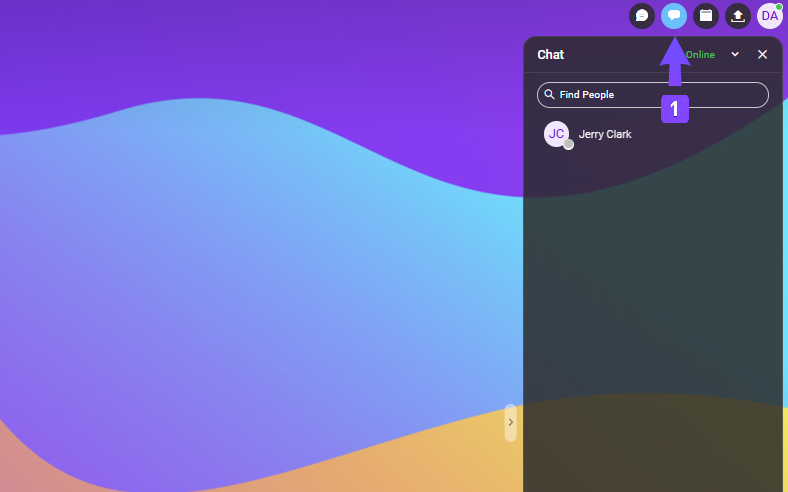
You can access Conversations  by clicking the Chat icon
 in the top-right toolbar.
2. Chat panel
The Chat panel lets you quickly find people and start conversations without leaving your current view in WebClient. It displays a search bar and a list of your most recent contacts. Use the Find People field  to search for a user by name or email. Selecting a contact opens a chat window with that person.
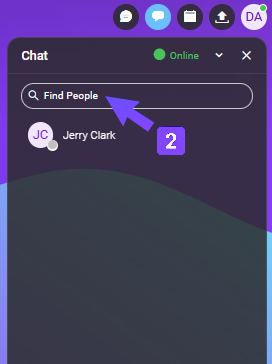
Displays all ongoing and recent chats. You can return to any conversation, view unread messages, and continue communication where you left off.
3. Contact Options
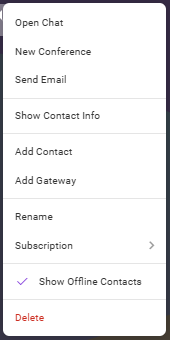
Right-clicking a contact, or selecting the ⋮ (More options) icon, opens a menu with additional actions.
3.1 List of Actions
This section provides an overview of all actions available for a selected contact. The table below describes what each option does.
| Action | Description |
|---|---|
| Open Chat | Opens a chat window with the selected contact in the bottom-left corner (collapsible). |
| New Conference | Starts a new conference with the selected contact. |
| Send Email | Opens a new email draft addressed to the contact. |
| Show Contact Info | Displays detailed information about the contact (full name, email address, phone, etc.). |
| Add Contact | Adds the user to your Contacts list. |
| Add Gateway | Configures a gateway for the selected contact (if available), such as Facebook Transport or Email/SMS. |
| Rename | Allows you to change how the contact name is displayed. |
| Subscription | Manages online-status visibility between you and the contact. |
| Show Offline Contacts | Shows or hides contacts who are currently offline. |
| Delete | Removes the contact from your list. |
4. Starting and Using a Chat
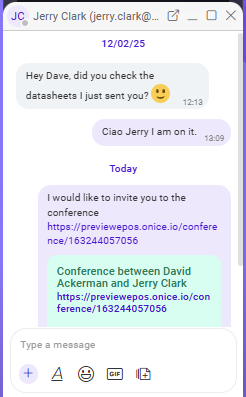
Double-clicking a contact, or right-clicking a contact and selecting Open chat, opens a chat window where you can send messages, attach files, and access additional communication tools. The chat window appears in the bottom-left corner of WebClient and can be collapsed when not in use.
4.1 Chat Tools and Features
| Feature | Description |
|---|---|
| Add / Share Menu (+) | Provides quick access to sharing files, creating a conference, sending your location, or inserting a code block. |
| Formatting Toolbar | Provides basic text-editing tools, including bold, italics, strikethrough, paragraph formatting, hyperlinks, lists, and code blocks. |
| Emoji Menu | Opens the emoji picker, where you can browse and insert emojis by category. |
| GIF Selector | Opens a searchable GIF library (Tenor integration) where you can browse and insert GIFs into the chat. |
| File Upload | Uploads files from your computer or WebClient storage via file picker or drag-and-drop. |
5. Message Notifications
WebClient uses several notification methods to make sure you do not miss incoming messages:
- Browser Tab Alerts – When WebClient is in a background tab, the tab title updates to indicate a new message.
- Conversations List Highlights – Chats with new activity are visually marked in the Chat panel.
- Collapsed Chat Notification – A small preview appears in the lower-left corner when a new message arrives.
These notifications help you stay aware of new activity even while working in other tabs or windows.
6. Conversation history
Conversations automatically saves your conversation history, which can be viewed at any time.
To view earlier messages in a chat, scroll upward in the conversation window. Older messages load as you scroll, allowing you to review previous parts of the conversation whenever they are available. Timestamps appear as you move through the chat history.

