WebAdmin portal
The WebAdmin portal is a browser-based administration interface for IceWarp Server.
It provides access to domain and user management, message queues, and the API Console.
Access the WebAdmin portal
Open the portal in a web browser using:
<server-url>/admin
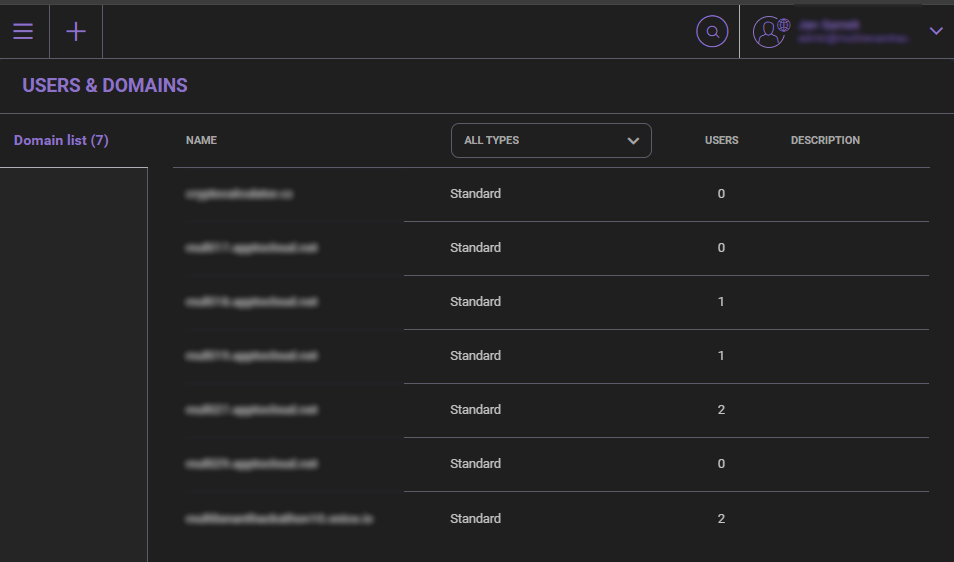
By default, the portal displays a list of available domains.
Main navigation
Use the main menu in the top-left corner to access the primary administration areas of the WebAdmin portal.
Each section provides a dedicated workspace for managing server configuration, domains, accounts, and system tools.
The availability of individual sections depends on your administrator role and assigned permissions.
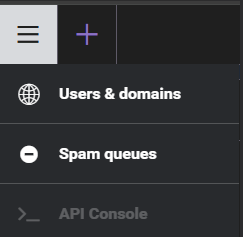
| Section | Description |
|---|---|
| Users & Domains | Manage domains and user accounts. Access configuration sections such as Accounts, Properties, SmartDiscover, and Limits. |
| Spam Queues | Review and manage queued messages, including Quarantine, Whitelist, and Blacklist, depending on enabled services and permissions. |
| API Console | Test API commands and review available endpoints for automation and troubleshooting. |
Plus menu (Quick actions)
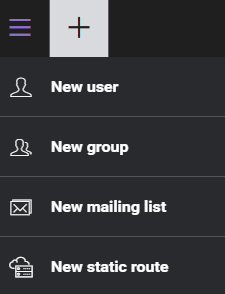
Use the + button in the top bar to quickly create common objects.
| Action | Description |
|---|---|
| New User | Create a new user mailbox in the selected domain. |
| New Group | Create a group account for shared access. |
| New Mailing List | Create a distribution list. |
| New Static Route | Create a routing-only address without a mailbox. |
Search
Use the search field (magnifier icon) to find settings and objects by keyword.
Search results depend on your permissions and the current context (for example, domain-level or account-level settings).
Account menu
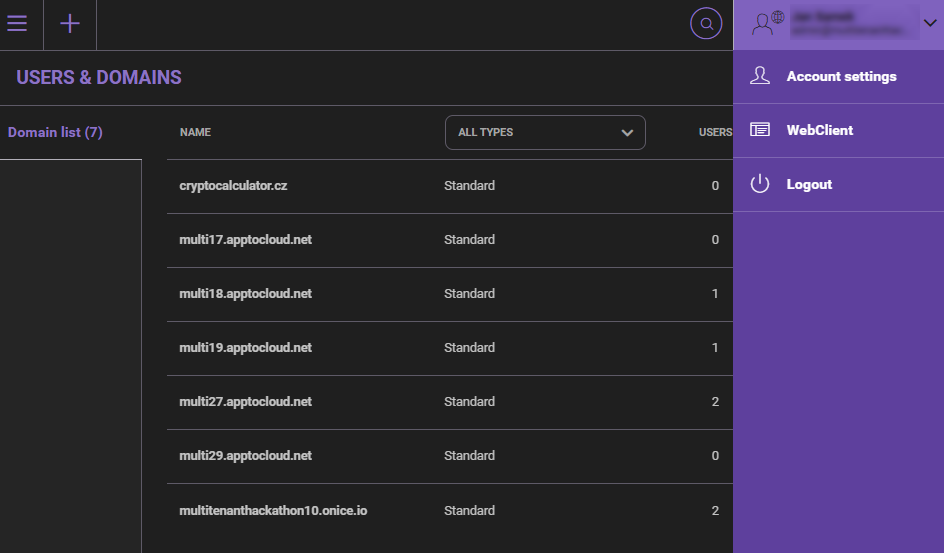
Use the account menu in the top-right corner to access account-related options. The dropdown menu displays the available actions:
| Action | Description |
|---|---|
| Account settings | Display administrator account configuration options. |
| WebClient | Switch to the WebClient interface without signing out. |
| Logout | Sign out of the WebAdmin portal. |
| Night mode | Switch between light and dark interface themes. |
Selecting Account settings opens a configuration panel for the currently logged-in administrator. The panel includes the following sections:
| Section | Description |
|---|---|
| Info | General account details, permissions, assigned plan, and enabled features. |
| Card | Contact information such as name, company, address, and phone numbers. |
| Forwarding, responder, and anti-spam settings. | |
| Limits | Disk quota, sending limits, and message size restrictions. |
| Rules | Mail processing rules for the administrator account. |
| Mobile Devices | Overview of connected devices and their synchronization status. |
After modifying settings, click Save to apply changes.
Navigation
The main navigation menu (☰) provides access to the main administration areas:
- Users & Domains – Manage domains and user accounts.
- Spam Queues – Review quarantined, whitelisted, and blacklisted messages.
- API Console – Execute administrative API commands.
Global controls
The top bar contains global controls available from any section:
- Plus Menu – Create users, groups, mailing lists, or static routes.
- Search – Search for domains, users, and configuration items.
- Account Menu – Access account settings, switch to WebClient, enable Night mode, or log out.

