Users & Domains
The Users & Domains section is the main administration area for managing domains and user accounts. Administrators can configure domain settings, manage accounts, control limits and features, and monitor domain usage. The options below provide access to individual domain configuration areas.
List of Users & Domains
The default view displays a list of available domains. For each domain, the following information is displayed:
-
Name – The domain name.
-
All Types – Filters domains by type: Standard, Domain Alias, Backup Domain, Distributed Domain, or ETRN/ATRN Queue.
-
Number of users – The number of users in the domain.
-
Description – The domain description
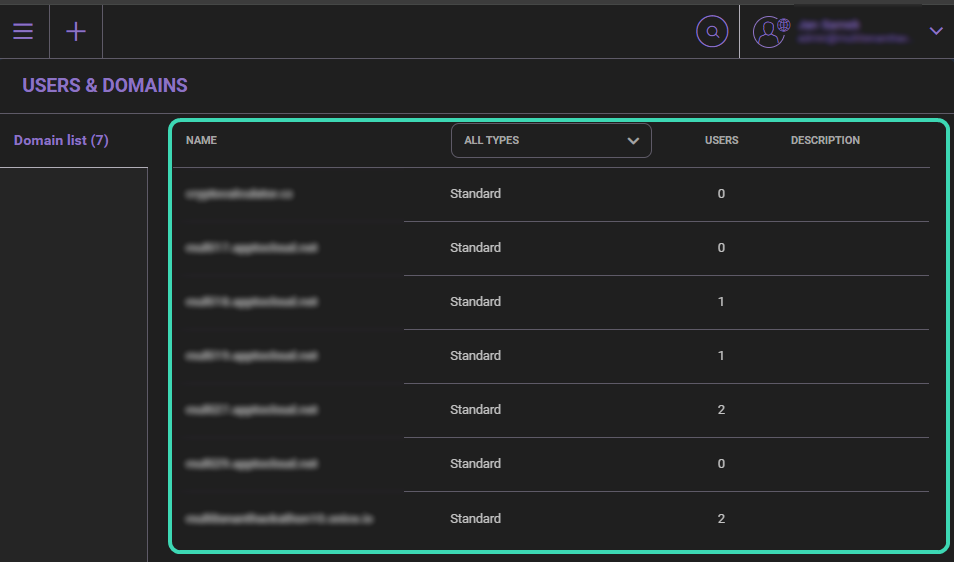
Click a domain to open its settings. To return to the domain list, click the ← arrow in the top-left corner next to the domain name.
Managing domains
After selecting a domain, the administration panel displays additional configuration sections in the left-side menu. These sections allow you to manage domain-level settings and related objects.
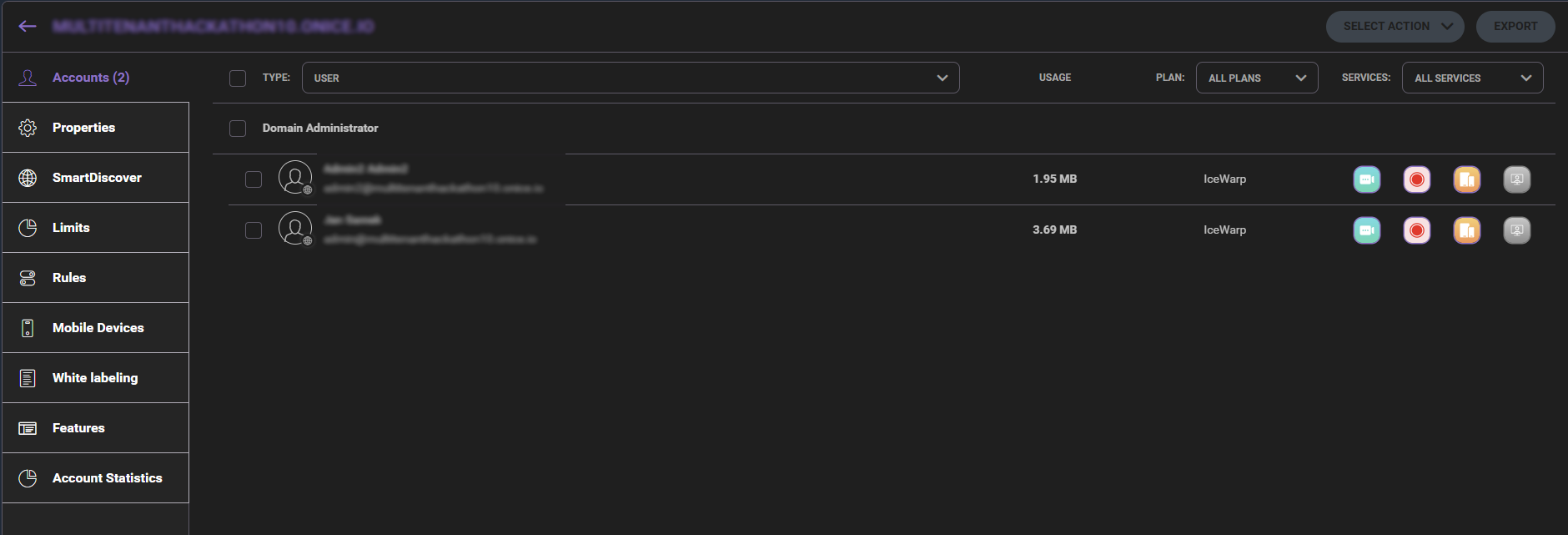
Available sections
Selecting a domain or user opens a configuration panel with additional management options in the left-side menu.
Depending on the selected object, different sections are available. The table below describes each section.
| Section | Description |
|---|---|
| Accounts | Manage user accounts in the selected domain. Supports filtering by account type, plan, services, and usage. |
| Properties | Configure general domain settings, permissions, client applications, and quotas. |
| SmartDiscover | Configure autodiscovery settings and service endpoints for automatic client configuration. |
| Limits | Configure domain and user limits, including quotas, sending limits, and expiration policies. |
| Rules | Define and manage domain-level message processing rules. |
| Mobile Devices | View and manage mobile devices connected to domain accounts and monitor their synchronization status. |
| White labeling | Customize domain branding, including login screen appearance, logo, background image, and interface theme. |
| Features | Enable or disable services and features available for the domain. |
| Account Statistics | Export detailed usage statistics for accounts in the domain. |
Accounts
Displays all accounts within the selected domain. Each email address is composed of:
primary_alias@domain_name
Accounts are grouped by account type:
- System Administrator
- Web Administrator
- Domain Administrator
- User
Available actions and filters
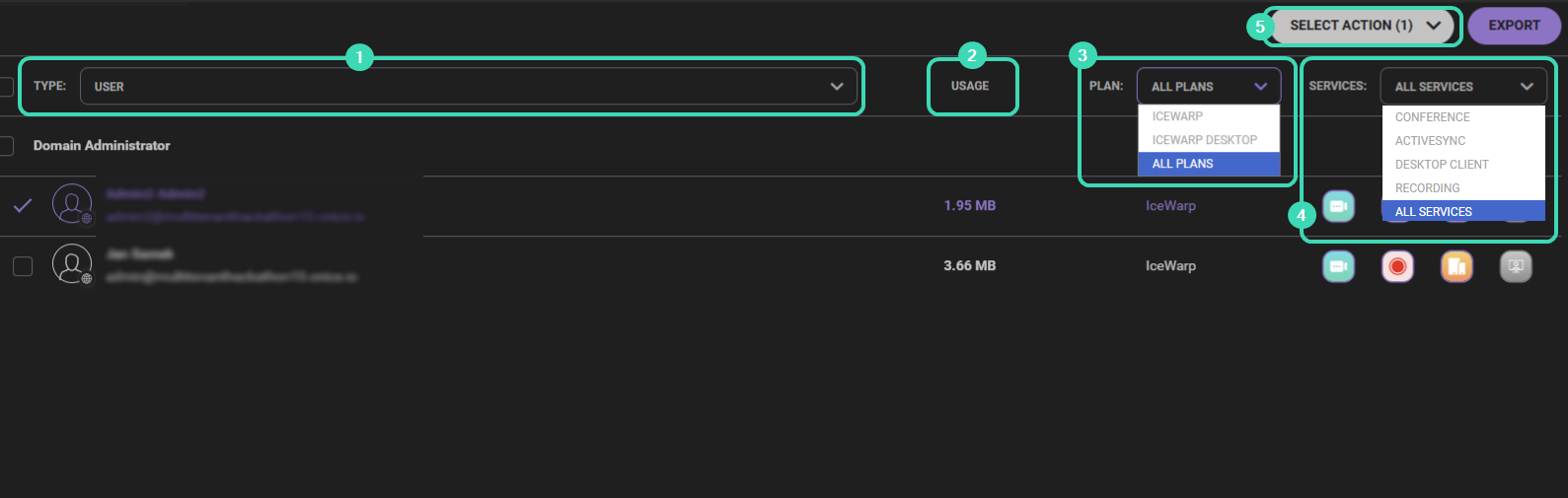
Use the controls in the Accounts view to filter, sort, and manage accounts:
 Record type filter: Select the account type:
User, Mailing list, Static Route, Group, Resource.
Record type filter: Select the account type:
User, Mailing list, Static Route, Group, Resource.
 Usage: Displays disk quota usage defined in Limits.
 Subscription filter: Filter accounts by IceWarp subscription plan:
IceWarp, IceWarp Desktop.
Subscription filter: Filter accounts by IceWarp subscription plan:
IceWarp, IceWarp Desktop.
 Services filter: Filter accounts by enabled services:
Conference, ActiveSync, Desktop Client, Recording.
Services filter: Filter accounts by enabled services:
Conference, ActiveSync, Desktop Client, Recording.
 Bulk actions: Select accounts and click
Select Action to:
Bulk actions: Select accounts and click
Select Action to:
- Disable services (ActiveSync, conferencing, recording)
- Add accounts to a group
- Move accounts to another domain
- Delete accounts
When you select an account, additional configuration options become available. For more information, see: Accounts
Opening a user account displays configuration areas in the left-side menu.
| Section | Description |
|---|---|
| Info | General account details, permissions, quotas, and enabled features. |
| Card | Contact information such as name, company, address, and phone numbers. |
| Forwarding, responder, and anti-spam settings. | |
| Limits | Disk quota, sending limits, message size limits, and expiration settings. |
| Rules | User-level mail processing rules. |
| Mobile Devices | Overview of connected mobile devices and their synchronization status. |
Properties
The Properties tab provides access to key domain settings, including:
- General domain configuration
- Permissions
- Domain quotas
- Client application management
You can also enable two-factor authentication (2FA) for the entire domain. Domain users can then activate two-step verification for their WebClient and WebAdmin accounts to improve security.
The Client Applications section includes configuration for:
- Mobile device management
- Outlook Sync
- Desktop Client
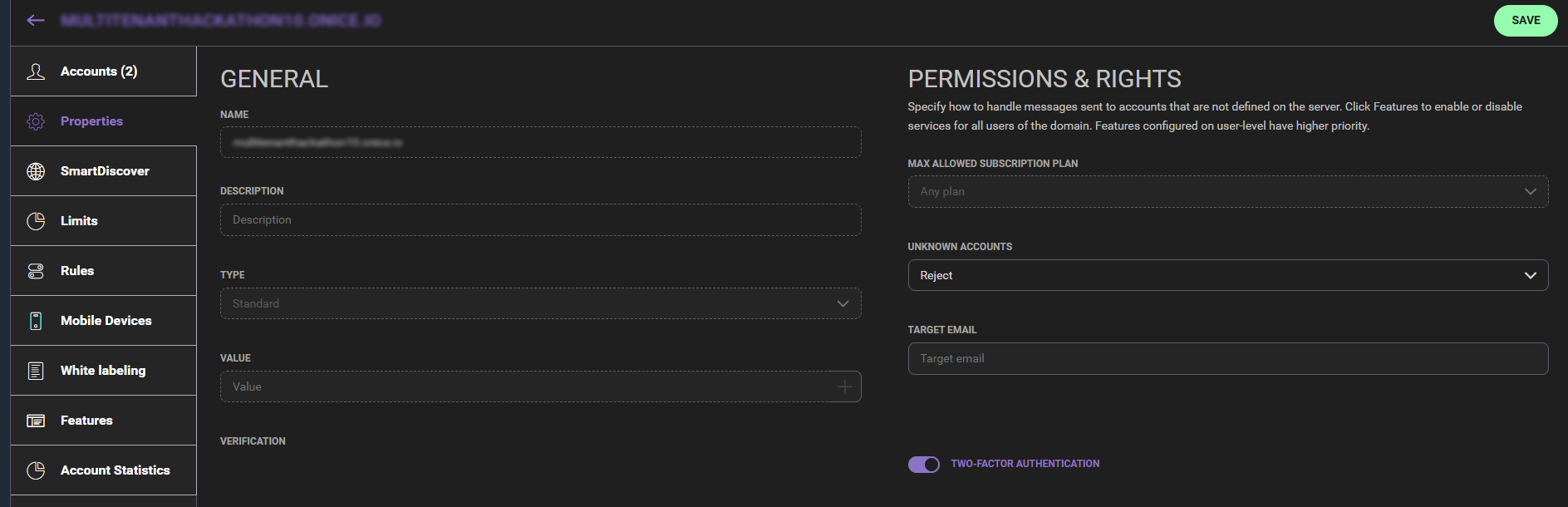
If you are using the IceWarp Subscription model, you can manage users for the entire domain in the Permissions & Rights section.
SmartDiscover
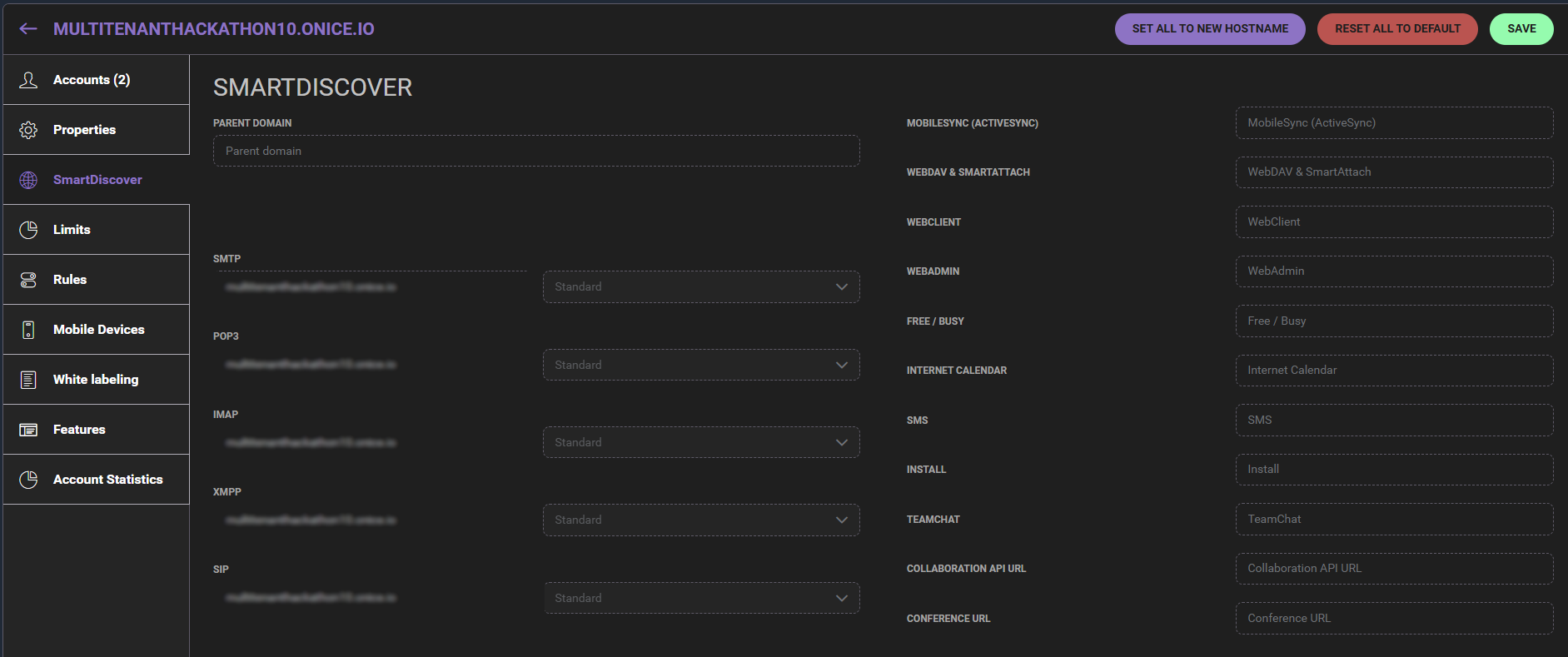
The SmartDiscover section allows administrators to configure service endpoints used for automatic client configuration. It helps client applications discover the correct protocols, ports, URLs, and server addresses automatically.
Administrators can configure the server hostname or alias used by individual services. The Set All to New Hostname option updates the relevant hostname parts in the URL fields while preserving the remaining path structure.
| Field | Description |
|---|---|
| Parent domain | Domain from which autodiscovery settings can be inherited. |
| Mail services | Hostnames and connection types for SMTP, POP3, IMAP, XMPP, and SIP services. |
| Web services | Endpoints for WebClient, WebAdmin, WebDAV, and SmartAttach. |
| MobileSync (ActiveSync) | Endpoint used by mobile devices for email, contacts, and calendar synchronization. |
| Collaboration services | Endpoints for Free/Busy, Internet Calendar, TeamChat, SMS, and conferencing services. |
| Client installation | Endpoint used for automatic configuration or installation of supported clients. |
| Collaboration API URL | API endpoint used by collaboration features and integrations. |
| Conference URL | Address used for web conferencing services. |
Limits
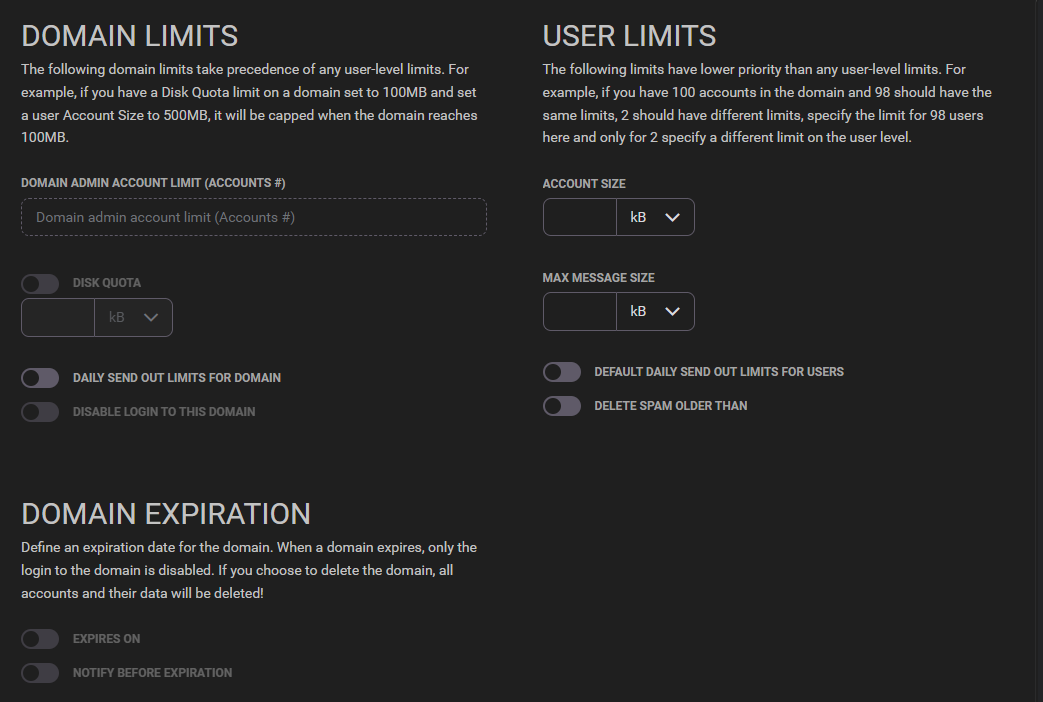
The Limits tab allows administrators to configure domain-wide and user-level limits.
The tab is divided into the following sections:
- Domain Limits – Defines restrictions for the entire domain, such as:
- Maximum number of accounts
- Disk quota
- Daily sending limits
- User Limits – Defines default limits for user accounts, including:
- Account size
- Maximum message size
- Sending limits
- Domain Expiration – Allows you to:
- Set a domain expiration date
- Configure notifications
- Define actions when the domain expires
Rules
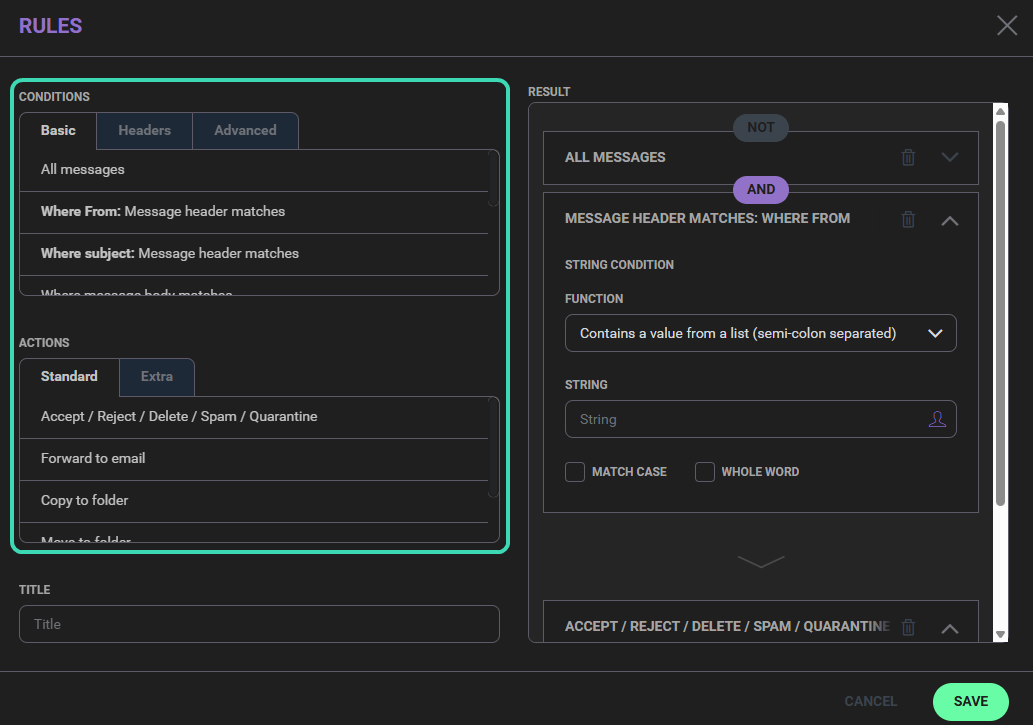
The Rules tab allows administrators to create domain-level rules for processing incoming emails.
Each rule consists of:
- Conditions – Define when the rule is triggered
- Actions – Define how the message is handled
Conditions can be configured in the following categories:
- Basic
- Headers
- Advanced
After defining the conditions and actions, enter a rule name and click Save. The rule is then added to the rules list.
Mobile Devices
The Mobile Devices tab displays devices synchronized with the domain using ActiveSync.
You can:
- Filter devices by last synchronization time and status
- Perform actions such as Allow, Block, or Delete
Devices can be managed from:
- Domain view
- Individual user accounts
Selecting a device opens its configuration, where you can:
- Review device information and synchronization settings
- Perform security actions such as blocking or remotely wiping the device

White labeling
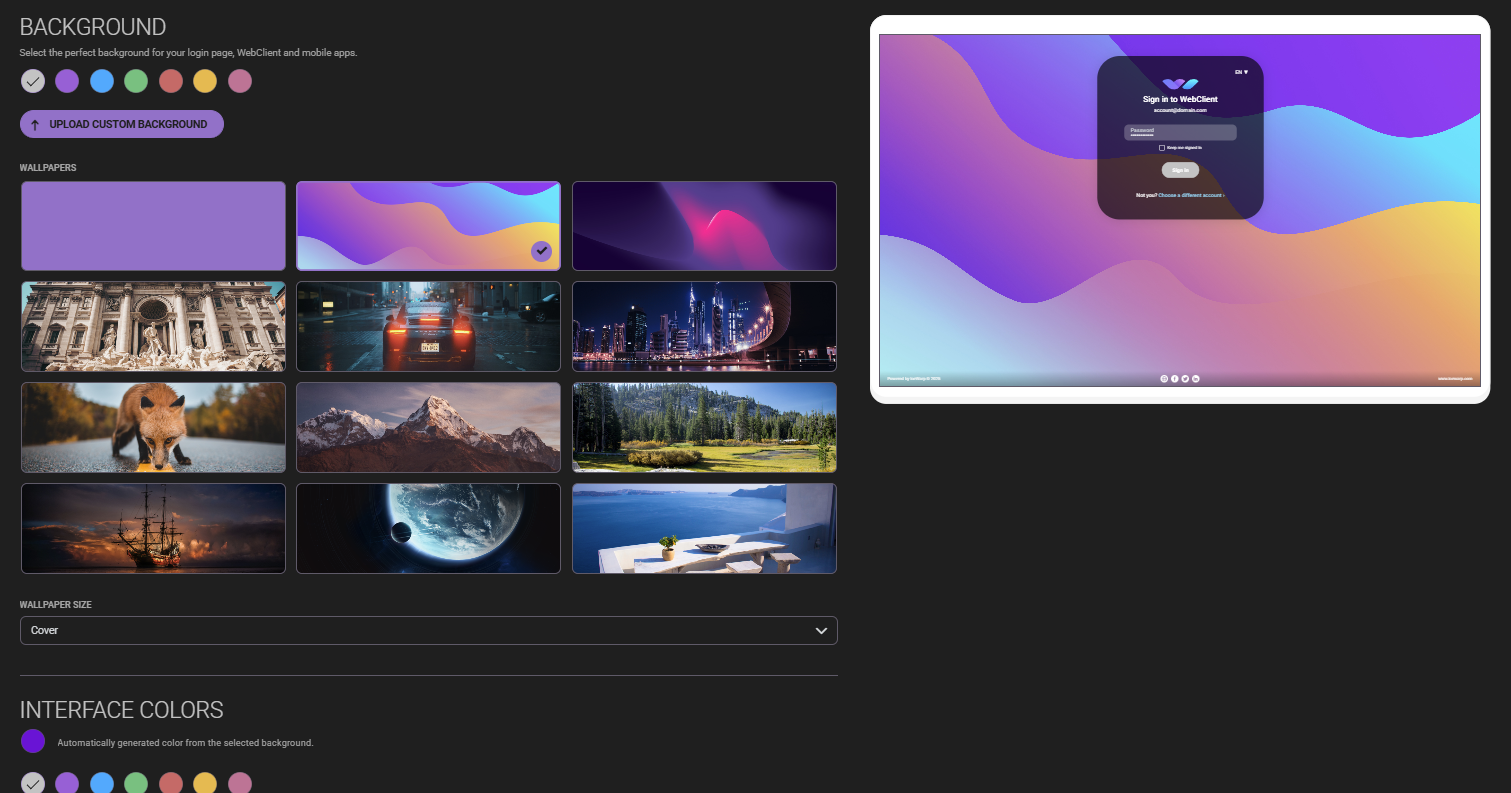
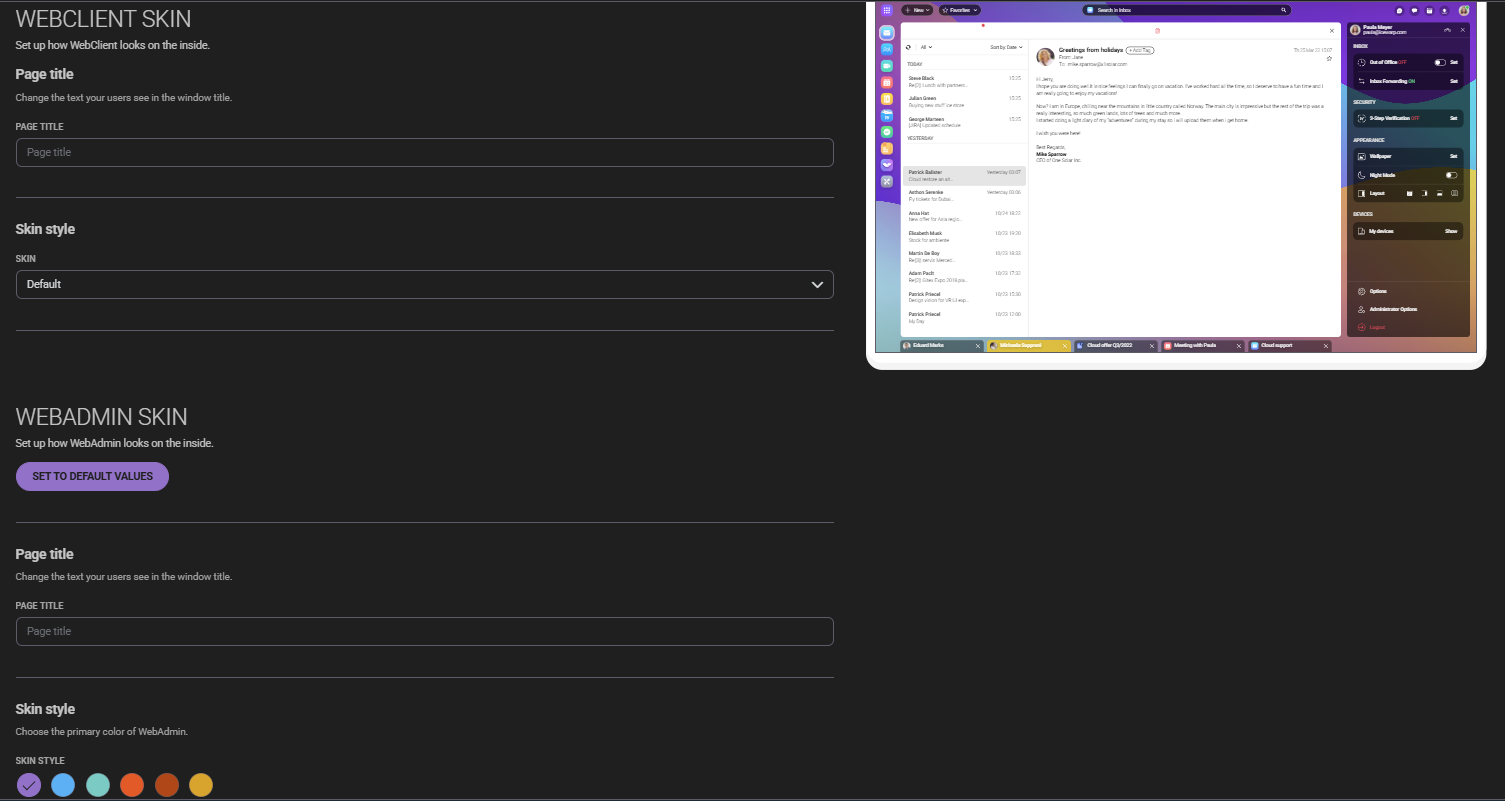
The White labeling tab allows you to customize the appearance and branding of WebClient and WebAdmin for the selected domain.
You can configure:
- Login page background
- Interface colors
- Logos and favicon
- Server language
- Login screen options
Additional options include:
- Custom sign-up fields and verification
- Social integrations
- Page titles and skins
- Banner ads
- Conferencing branding (logo and redirect URL)
Features
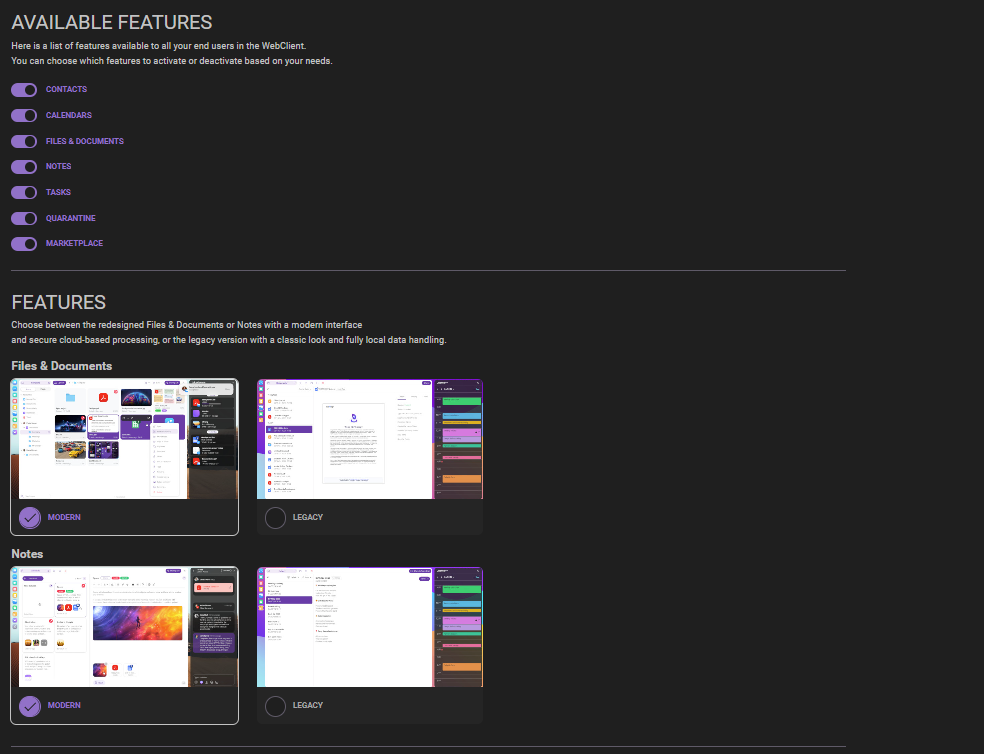
The Features tab allows administrators to enable or disable features available to domain users in WebClient.
In the Available Features section, you can manage modules such as:
- Contacts
- Calendars
- Files & Documents
- Notes
- Tasks
- Quarantine
- Marketplace
You can also choose between Modern and Legacy versions of selected applications, such as Files & Documents and Notes.
Account Statistics
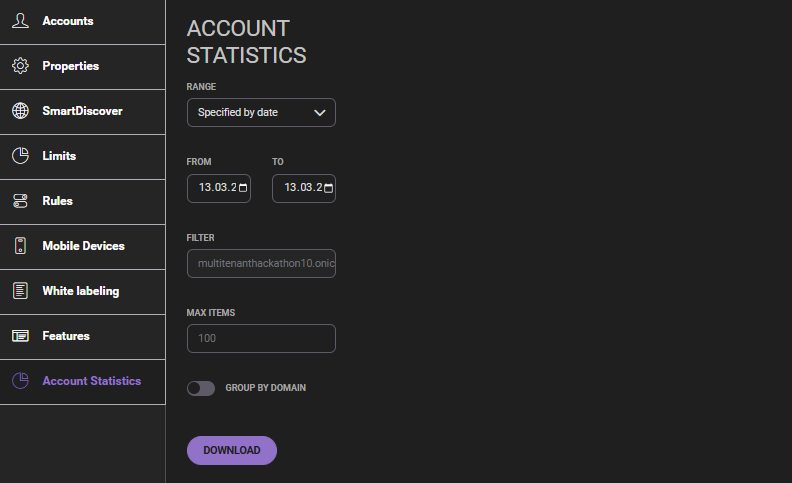
The Account Statistics tab allows administrators to generate and download statistics for accounts in the selected domain.
Configure the statistics report using the following options:
- Range / From / To – Select the time range for the report
- Filter – Include statistics for a specific domain
- Max items – Set the maximum number of returned records
- Group by domain – Aggregate results by domain (optional)
Click Download to export the report.
Statistics report file structure
| Field | Description |
|---|---|
| Received Messages | Number of messages delivered to the user's mailbox. |
| Received Amount | Total size of data delivered to the user's mailbox. |
| Sent Messages |
Number of messages sent by the user through IceWarp Server.
Note: Messages sent to multiple recipients are counted once per recipient. |
| Sent Amount | Total size of data sent by the user through IceWarp Server. |
| Sent Out Messages | Messages sent outside the server where the user is the originator. Each recipient is counted separately. |
| Sent Out Amount | Total size of outgoing messages sent outside the server. |
| Last Sent | Date and time when the last message was sent. |
| Last Received | Date and time when the last message was received. |
| Last Login | Date and time of the user's last login to IceWarp Server. |
| Files Count | Number of files stored in the account. |
| Files Amount | Total size of files stored in the account. |
| Created |
Date when the mailbox was physically created, typically after the first login or first email.
Note: This date may differ from the account creation date shown in the GUI. |
| Last IP | IP address used during the last connection to the server. |
| Mailbox Quota | Percentage of the mailbox quota currently in use. |
Next steps
Explore related sections:
← Back to WebAdmin portal

