Migration
Final check list before you can start:
1. Access to the internet.
2. The latest IceWarp version.
3. The correct ports are set up (see IceWarp recommended network ports > Dashboard microservice).
4. The Dashboard in WebClient is functional and accessible.

5. The Settings section must be accessible, because only a full Administrator has access to the Settings section.

6. There must be enough disk space on the IceWarp server.
7. The hardware requirements must fit the system size
How to access the M365 Migration Tool
To download the M365 Migration tool, go to Webclient > Settings > Migrations > Office 365 Migration Tool.
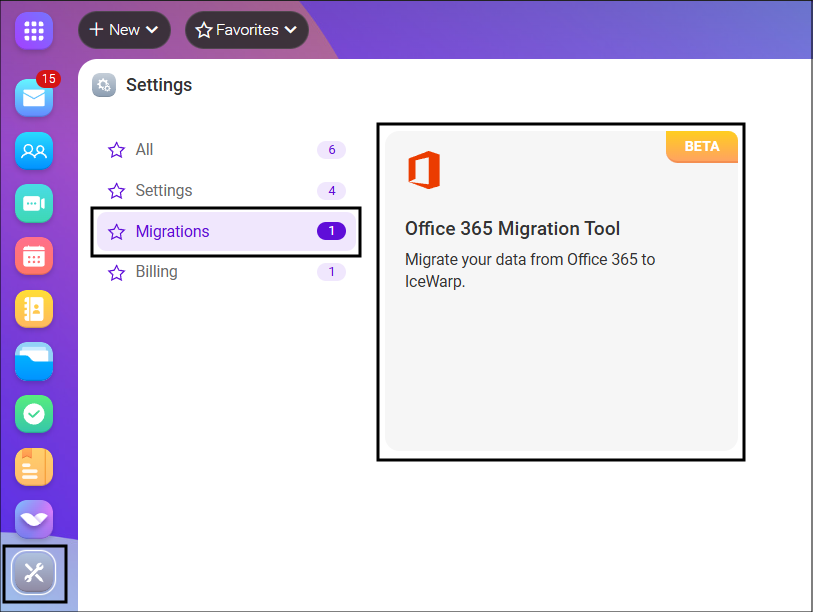
If the M365 Migration Tool does not work or is not available, please contact the IceWarp Support Team for help.
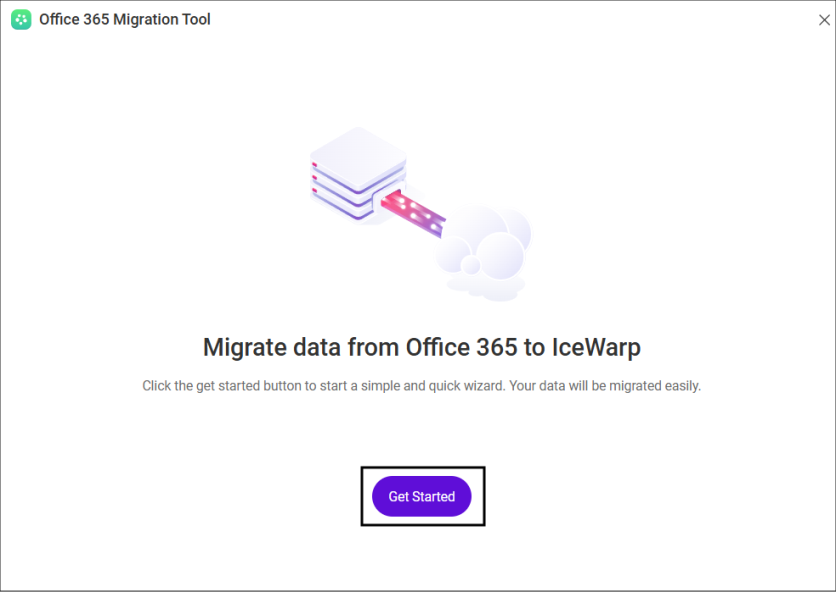
Initial Screen
Select Get Started.
Import Setup
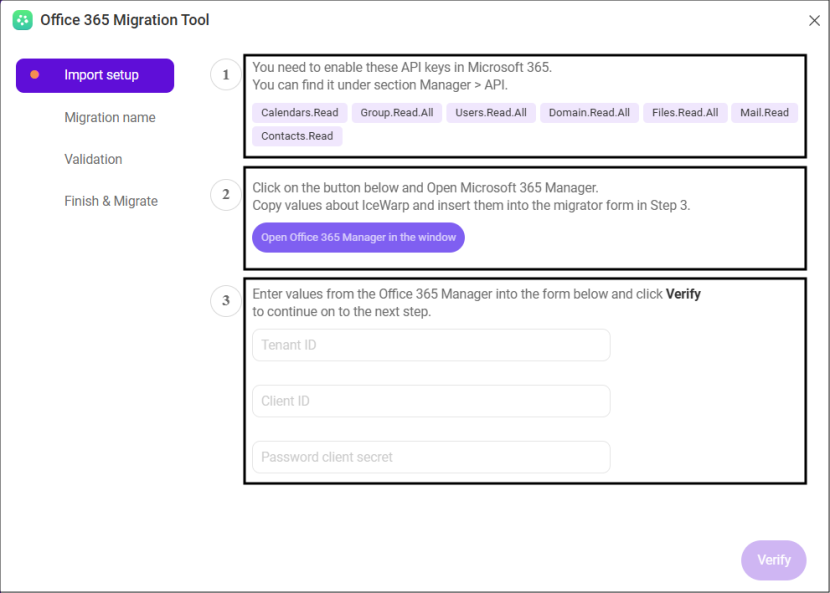
1. You will see a list of items, called APIs, that need to be turned on in the Microsoft Entra admin center.
2. Click the button to open Microsoft Entra in a new tab.
3. There, you will need to copy three pieces of information: the Tenant ID, Client ID, and a secret, which you created during the pre-migration process.
4. Once you have them, come back and fill them into the fields you see on the screen.
5. When everything is filled out, the setup is done and click Verify to continue.
Migration name
Enter the Migration name and select Continue.

Validation
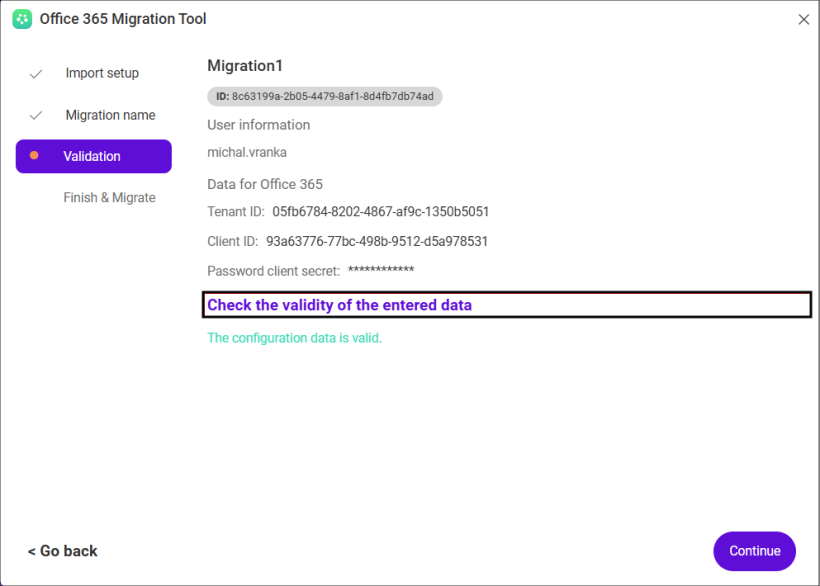
Select Check the validity of the entered data and verify the outcome.
If the outcome is “The configuration data is valid”, select Continue.
Finish and Migrate
Click Start Migration to begin the process.

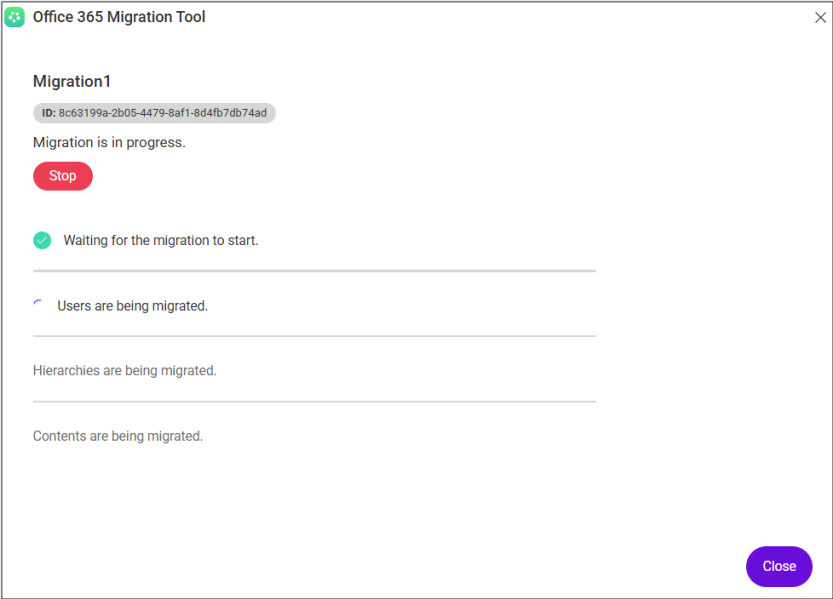
Once started, you will see a screen showing the progress of the migration.
Users can still access their accounts while the migration is running, but we do not recommend using any accounts that are currently being migrated, to avoid data issues.
The migration can take anywhere from a few hours to several weeks, as is mentioned in the pre-migration process section. This depends on how much data is being transferred.
When the migration is complete, a final screen will appear.
If you click the Done button, the migration is considered finished. Any future migration will start from the beginning and copy the entire database again. Use this option only if you are completely done with this migration.
If you do not click Done and simply close the window (using the standard Windows close button), the migration progress is saved. When you open the tool again and click Run again, it will continue from where it left off, only copying the new or changed data (not everything again).
The migration progress is saved for 1 month, so you can come back and finish later if needed.
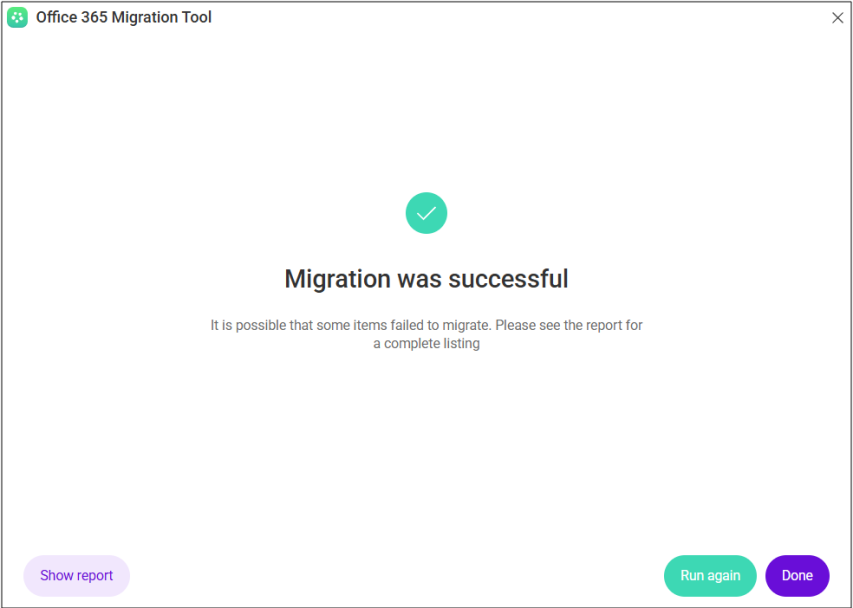
On this screen, you can click the Show report button to see a summary of what was migrated.
The report gives you an overview of the migration. Detailed technical logs are not available in the M365 Migrator.
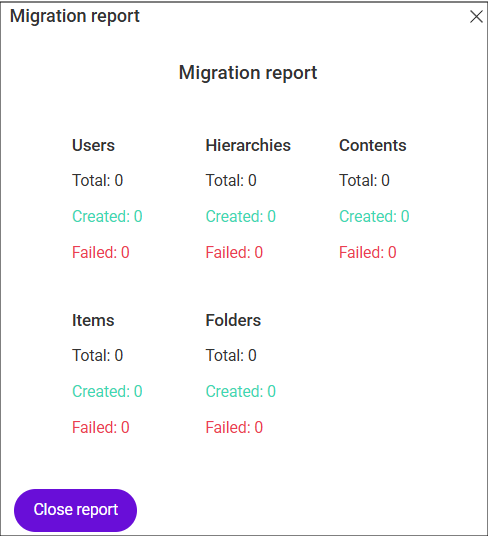
If you need to see detailed logs, please contact the IceWarp support team.

