Login Policy
The Login policy lets you set the login limits. The tab consists of the Login Policy, Login Settings, and Login IP Restrictionsections.
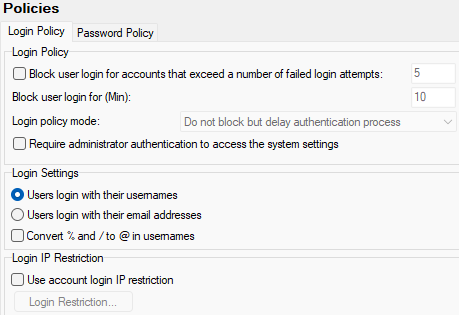
Figure. Policies level management: Login policy tab.
Login Policy
|
Field |
Description |
|---|---|
|
Block user login for accounts that exceed a number of failed attempts |
Check this option to block users for a specified length of time, if they exceed the given number of consecutive failed login attempts. Set the value in the text box to the number of allowed attempts (5 in the above screenshot). |
|
Block user login for (Min): |
Specify how many minutes a user should be blocked for, if they exceed the failed login attempts number (10 minutes in the above screenshot). After entering the correct password, the account will be unblocked for the next attempts. i.e.: only one attempt to login with correct password will be blocked. |
|
Login policy mode: |
Choose one of three options:
|
|
Require administrator authentication to access the system settings |
Check this option IceWarp Server console to ask for a user/password combination when it is started. The user entered must be an administrator. Note: In the case you have forgotten your administrator password (definitely very rare situation), you can use the following command to disable it: tool.exe (./tool.sh) modify system c_gui_requireauth 0. |
Warning: Login Policy settings apply to all types of authentication in IceWarp Server (SMTP, POP3, IMAP, HTTP, etc.)
Login Settings
|
Field |
Description |
|---|---|
|
Users login with their usernames/ email addresses |
If you have a large number of domains and accounts, it is advisable to use login with email address. This will reduce mail authentication and login time as IceWarp Server will be able to locate the account more quickly. Using this option also allows you to have the same user / password combination in different domains. |
|
Convert characters % and / to @ in username |
Some older mail clients (Netscape and Mac) do not allow using @ in a username. If you wish to use the login with email address option, check this option so that your users have the option to login with % or @ in the email address. Example: user%icewarpdemo.com will be converted to user@icewarpdemo.com |
Login IP Restriction
|
Field |
Description |
|---|---|
|
Use account login IP restrictions |
Enabling this option offers you an IP security system to ensure that particular accounts can only access the IceWarp Server from specific IP addresses. Rules are stored in a file which can be created and edited by click the Login Restriction button. |
|
Login Restriction... |
Pressing this button will open a dialog where you can create or edit your IP restriction rules. This applies to all services. Examples are given within the editor dialog – click the Comment button. |

