Welcome to IWDC
A quick guide through the IWDC setup wizard.
Theme
You can select the color theme that you prefer from the startup selection. If you want to look into more options, go to menu icon > Settings > Appearance > Themes.
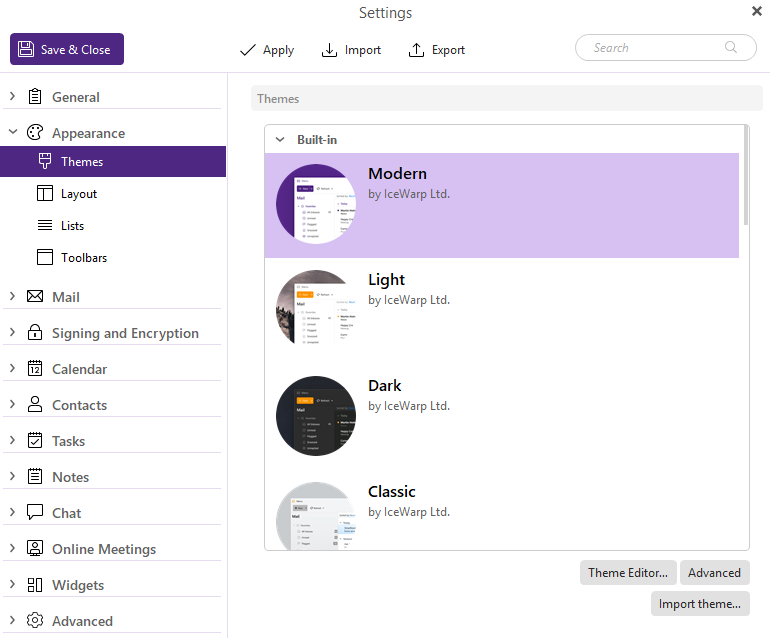
There is a number of default built-in themes to choose from. You can also create your own, using our Theme Editor or download user-made themes from the IWDC Theme Gallery.
After you have imported a downloaded or created theme via the “Import theme” button, you can find the custom themes in the list below the built-in themes.
Layout
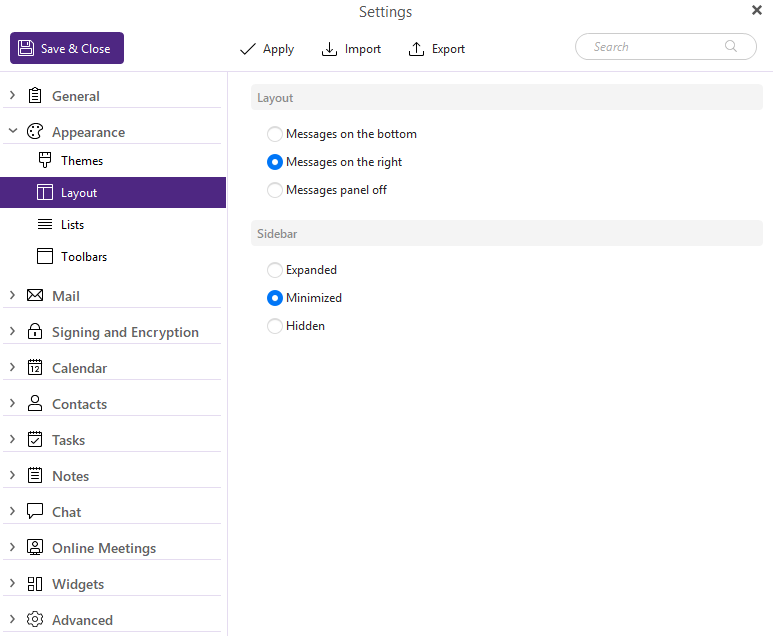
Decide how to view and read your messages - the layout allows you to show the message detail directly in the main window, either on the right of the message list or below it.
If you turn off the messages panel, you will only see the message list in the main window and will need to double-click the messages to open them in a new window.
You can change this setting anytime via the menu icon > Settings > Appearance > Layout.
Conversations
Conversations are a viewing option that puts messages, that are shared with the same contacts and the same topic, into logical and chronological threads, so they are easier to read.
Messages of the given account are linked into conversations from all folders except of the Trash or Junk Emails. Messages are not moved into different folders when viewed as a conversation - they keep their original location. They will be shown in any folder that contains at least one part of the conversation.
That is why, you can, for example, see the same conversation in the Inbox and Sent folders. The messages you have sent are still stored in the Sent folder and you can read the full message exchange in your Inbox if you need to check what was said in previous emails. This is true for any parent folder.
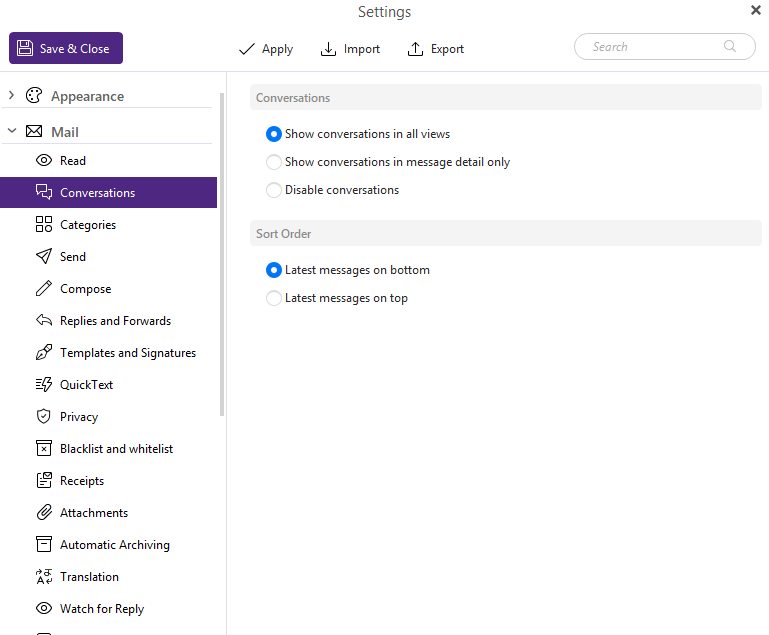
There are three options to choose from:
• Conversations in all views
Conversations will be shown in the open message detail and also as threads in the message list.
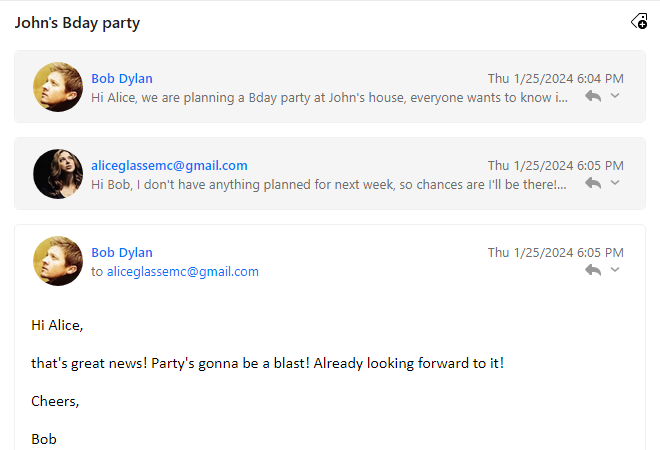
In the message detail, you will be able to read and scroll through all the messages. By default, only the latest and unread messages will be expanded, other messages will be collapsed under “Show X older emails” heading, so you can view them if needed.
In the message list, you will see a number of messages in the given conversation. Clicking the number will open the list of the messages as a Thread. You can open specific messages one by one if you want to view them in the message detail separately without having to scroll up or down.
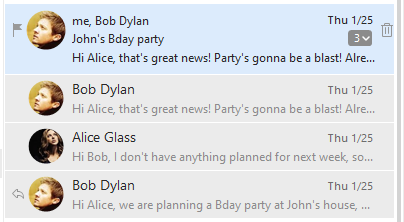
This also means that the older messages will not be found in the message list separately. They are all hidden inside the thread and the conversation will be listed in the message list based on the received time of the newest message.
• Conversations in message detail only
Conversations will be shown in message detail only. The message list will show emails separately.
The message detail will work the same way as in the previous option, you will have the option to open and scroll through all the emails in the given conversation.
But the message list will show all message separately with no option to view the threads.
• Disable Conversations
Messages will be shown separately in both message detail and message list.
This is the simplest view, in which the message list shows each message separately and the message detail will view only the message you clicked on.
You can change your conversations view at any time via menu > View > Conversations or in menu > Settings > Mail > Conversations.
Categories
Categories will show messages from your Inbox in separate tabs based on the sender or type of the message. The messages are still located in your Inbox folder. They are organized so it is easier to get to important messages faster and filter out the rest.
For Google accounts the Categories are synchronized from the server. If you already use Categories and have them set up to your liking, the messages will be sorted in the correct categories. The same way they are in your Gmail webmail.
For other accounts, there is an algorithm in IWDC that will categorize the messages for you.
You can of course change the category when needed - simply drag and drop the message on top of the other Category tab or right-click the message to change it to a specific category. This will also create a rule for new messages received from or sent to the same contacts to categorize them accordingly.
• Press and hold the "Shift" key while drag and dropping messages to change the category for all messages received from or sent to the same contacts.
• Press and hold the "Alt" key (on Windows) or "Control" key (on macOS) while drag and dropping messages to change the category just for the selected messages without creating a rule.
You can change the categories or turn them on/off via right-click at the top of the message list and change settings for "Category tabs."
You can change the same settings in menu > Settings > Mail > Categories. You can manage the custom rules for the categories here for each account.
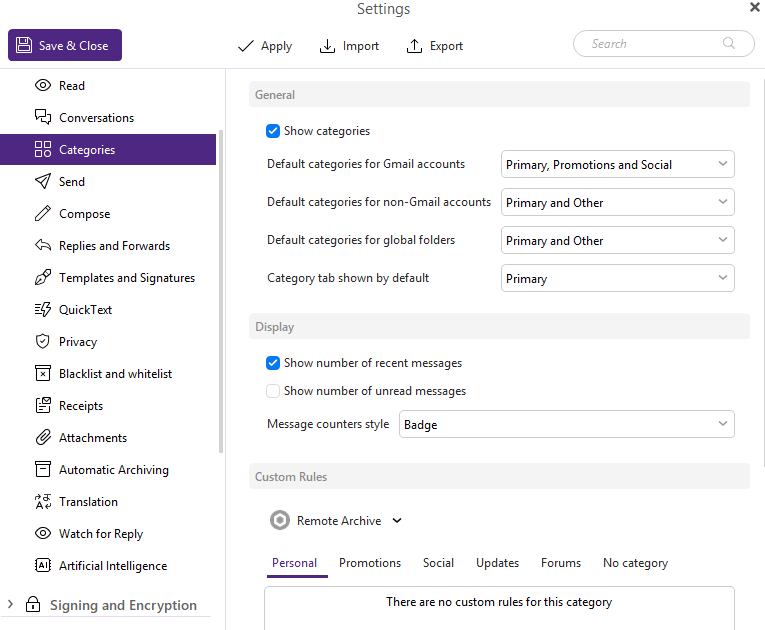
When choosing the category options for the first time you can choose from these options:
• Autoselect categories based on account type
Default Google categories (Primary, Promotions, Social) will be enabled for Gmail accounts.
Primary and Other categories will be enabled for all other accounts.
• Gmail style for all accounts
Use default Google categories for accounts from all mail providers - Primary, Promotions, Social in all inboxes.
• Primary and Other categories for all accounts
Only the Primary and Other tab will be shown for all accounts. Important emails will go to Primary while the rest of your messages go to Other.
• Disable categories
All accounts will just use normal Inbox view with all messages. This option will not show any category tabs.
Once you have selected one of these options, you can customize and add or remove any of the Categories.
Recent badges for new messages
Recent badge will be a red number next to your folders and category tabs that will show the number of new, unread messages that have arrived since the last synchronization. That is instead of showing the number of all unread messages next to the folder name. This number is then replaced by full unread count once the folder is opened.
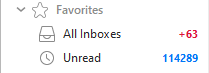
• Enable recent badges
Use recent badges to quickly recognize the newest messages in your folders.
• Disable recent badges
Always show unread count for all folders.
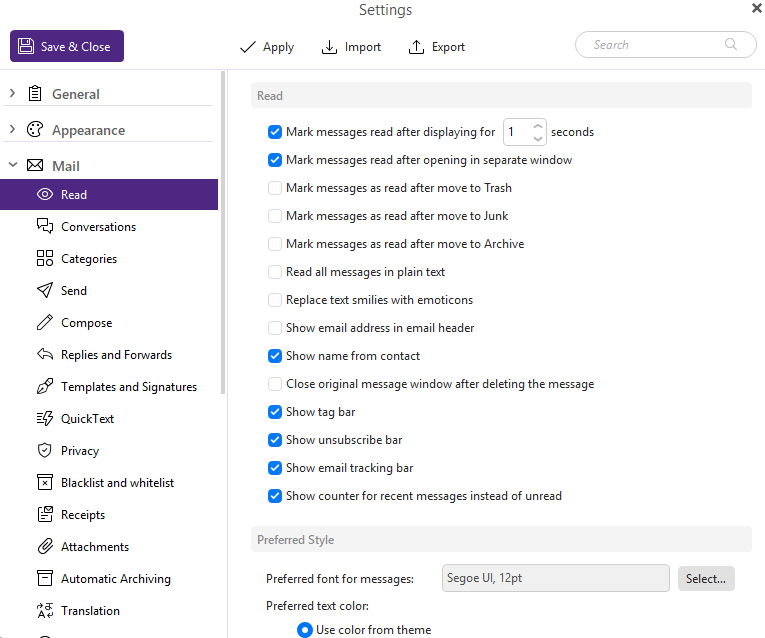
You can change this setting at any time in menu > Settings > Mail > Read via the option “Show counter for recent messages instead of unread.”
AI Features
Read more about AI Features on this dedicated page.

