Working with Chat
Messages
To open the Chat panel, click 
 . Double-click a contact to open the instant messaging (IM) chat
  .
.
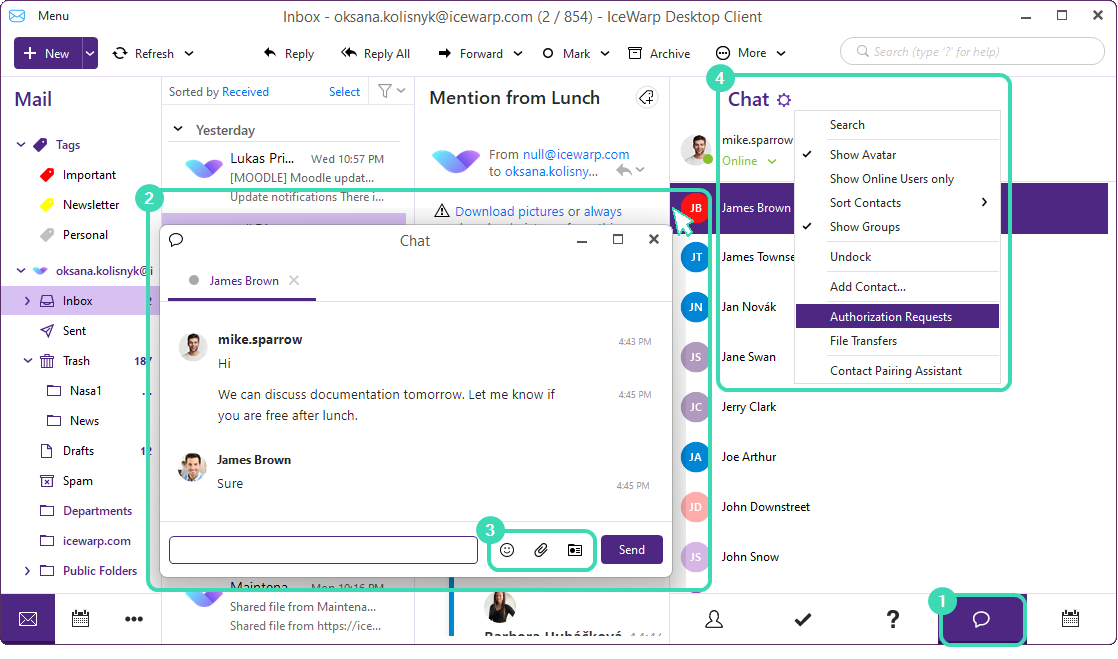
In the chat window  , you can also:
-
Select emoticons. Click
 to insert an emoticon (emoji) to your text message.
 -
Send files. Click
 to open File Explorer and select a file from your computer.
 -
Check profile. Click
 to view the personal info page of the contact you are chatting with.
Authorization requests
When your colleagues add you to their IM list of contacts, you receive an authorization notice requesting your consent. Click  and select Authorization Requests
  to open the list of authorization requests.
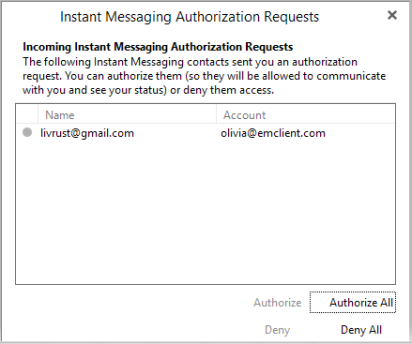
Figure. Authorization request.
In the Authorization Requests Manager window, you can:
-
View the contacts profiles by right-clicking the account name
-
Select authorize or deny authorization to contacts individually by using the buttons in the low right-hand corner. You can also ignore the request.
Once authorized, your contacts will be able to see you and chat with you through their IM chat.

